In Meeting Votes
Voting now has its own dedicated Votes tab for holding votes.
Create Vote
In the meeting vote tab, select New Vote. 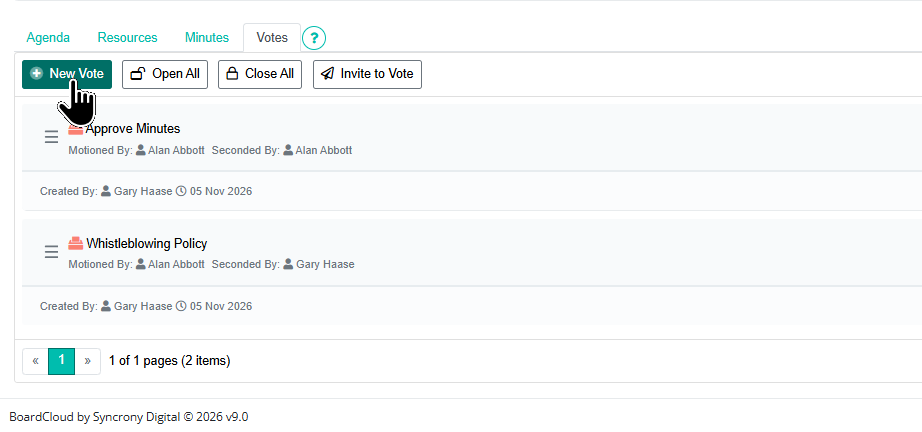
A window will open.
-
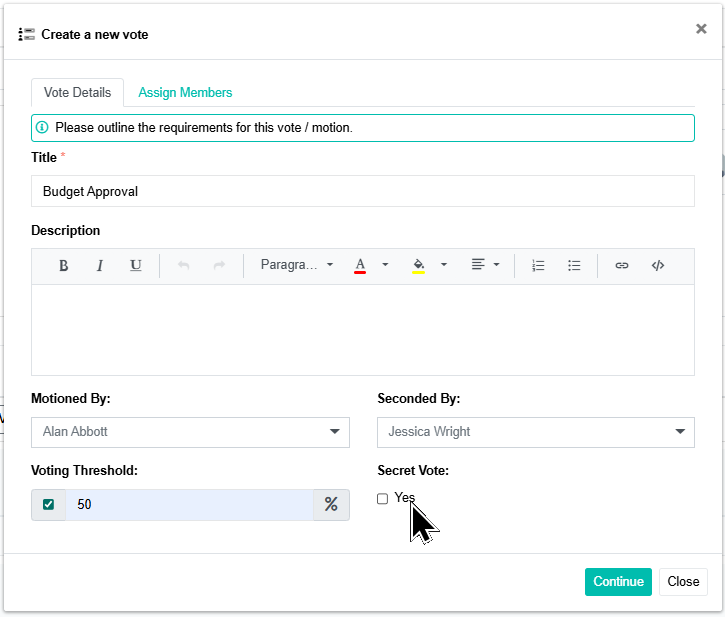
Add a title, a short description, and an optional motioner/seconder.
-
Our vote manager allows for custom thresholds. Set the exact percentage needed for each vote to carry to match your constitution or rules. In this example, I am setting a 50% threshold.
-
A meeting vote can be configured for a secret ballot. The service still verifies that each ballot comes from an eligible participant, but the secret-ballot views and audit report do not reveal who cast a particular choice.
Assign Members
This assigned list is the eligible electorate for the vote.
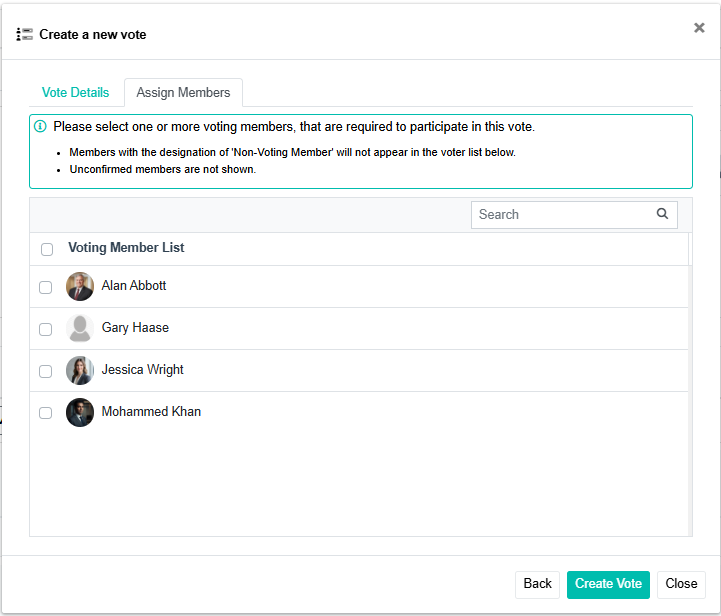
You can then create the vote.
Link the Vote to Your Agenda
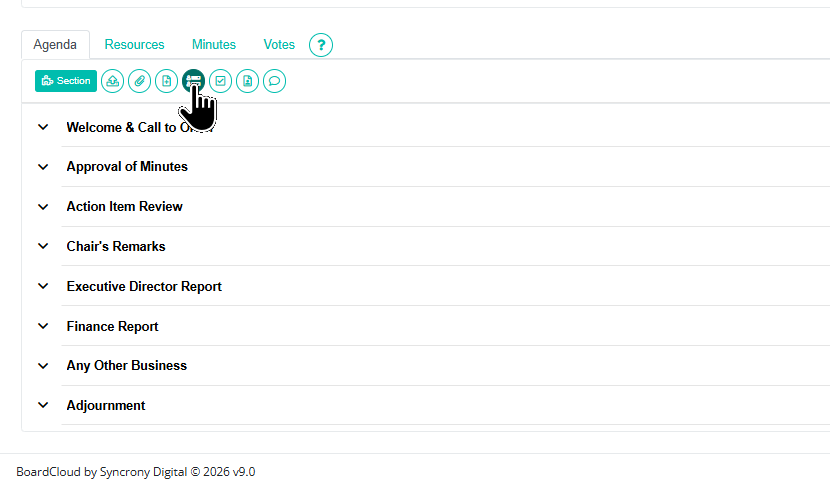
Create a vote section.
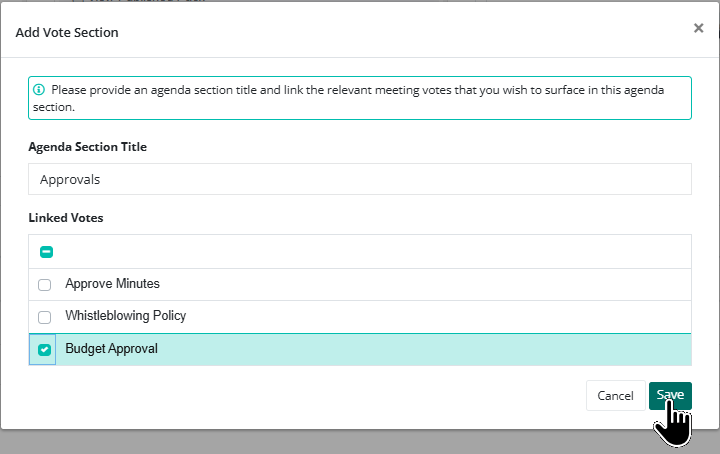
Give the section a title and select the vote you want the section linked to.
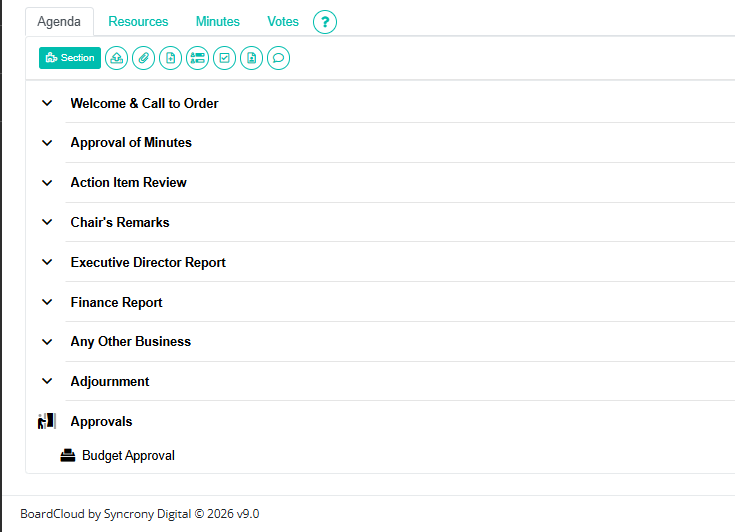
The section and vote now appear in the agenda and will be added to your board pack. You can reorder by dragging and dropping the voting section like any other agenda section.
Opening the Vote
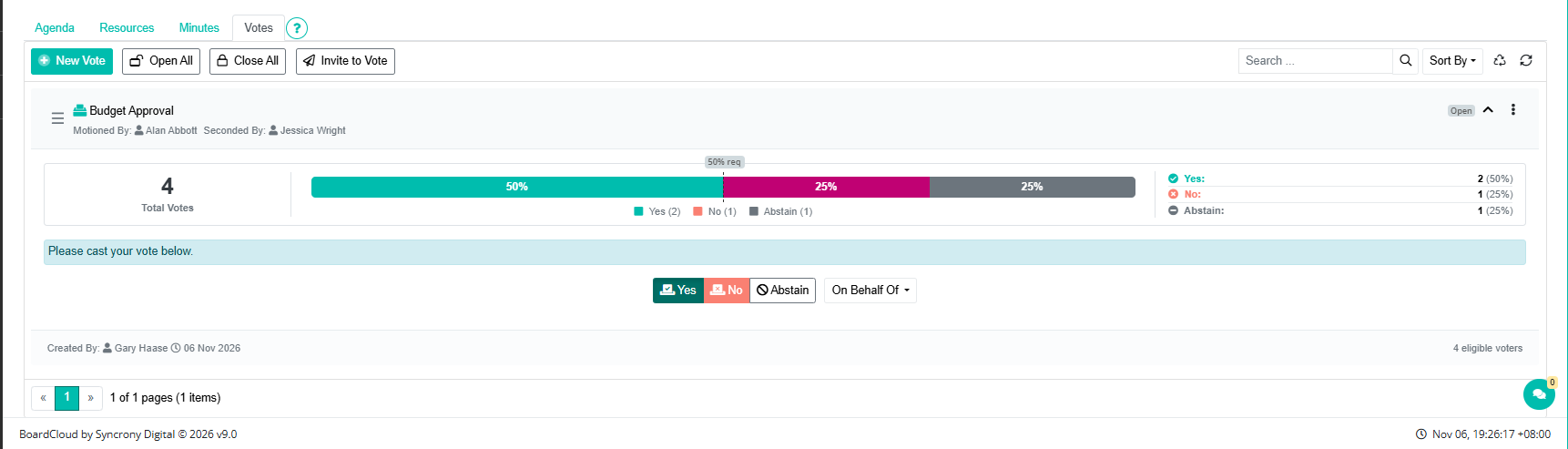
Click the Open vote button to open the vote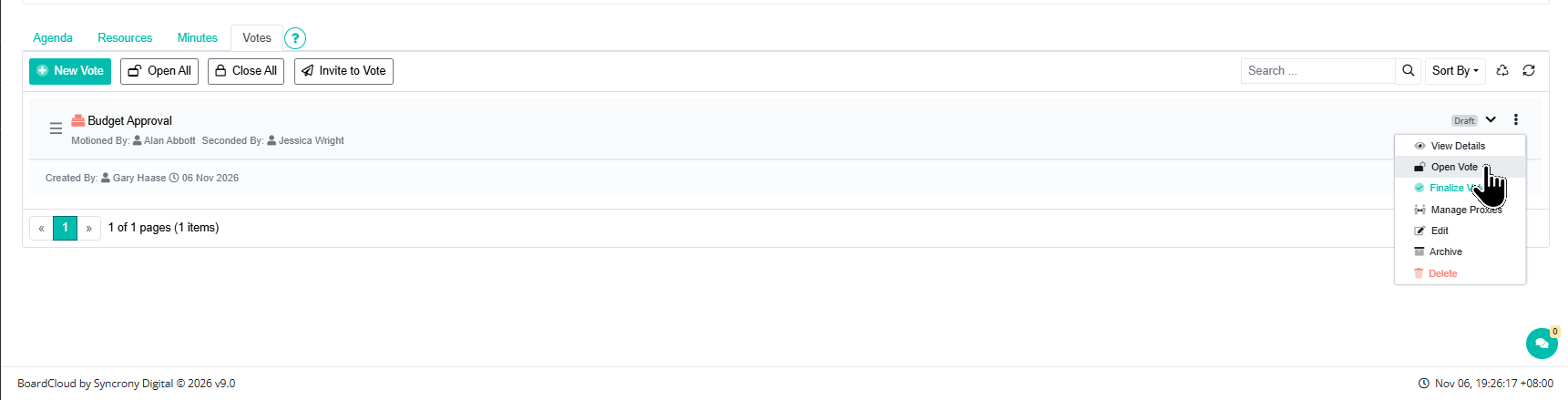
The live totals are a preview, not yet the official result. Meeting ballots can be changed until the vote is closed.
Closing and Finalizing
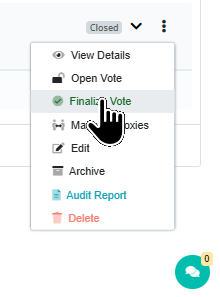
Closing the vote locks the ballot box so no further changes can be submitted, while allowing the chair to review the raw tally before making it official.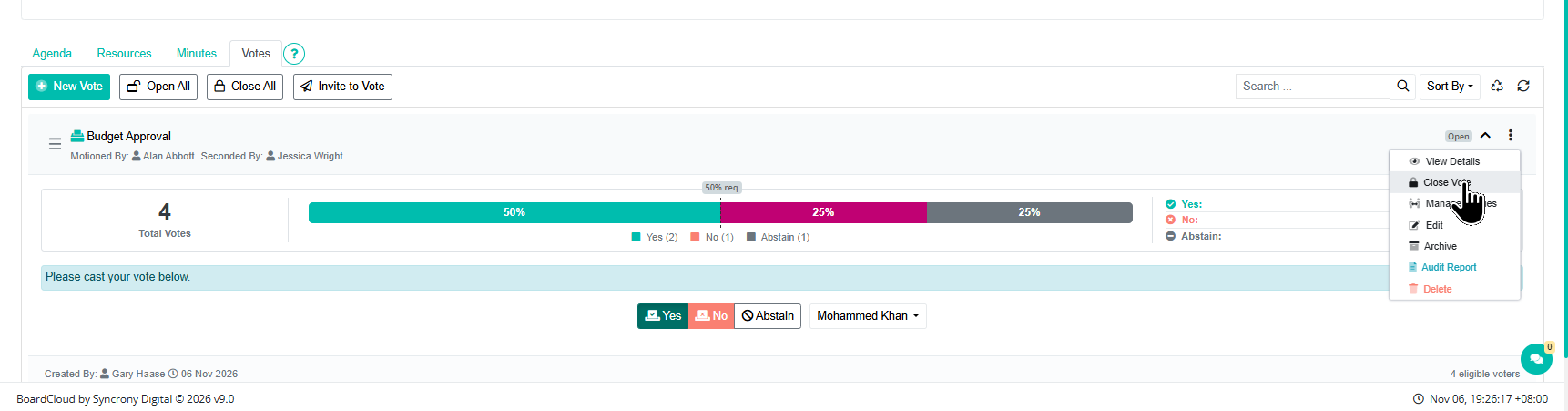
Finalization records the outcome, the exact tally, and the policy used. It is an auditable, one-way action, and the finalized snapshot cannot be edited or reopened.