
Creating a Cover Page
Creating a Cover Page
The cover page is a full-page document that appears at the beginning of your board pack. BoardCloud automatically adds the meeting title, meeting date, organization name, and other meeting information (these can be enabled or disabled in your meeting settings), so your cover page usually only needs your organization's logo or branding.
Our Recommendation
For the cleanest appearance:
- Create an A4 or Letter-sized document (matching your board pack).
- Place your organization's logo approximately one-third of the way down the page.
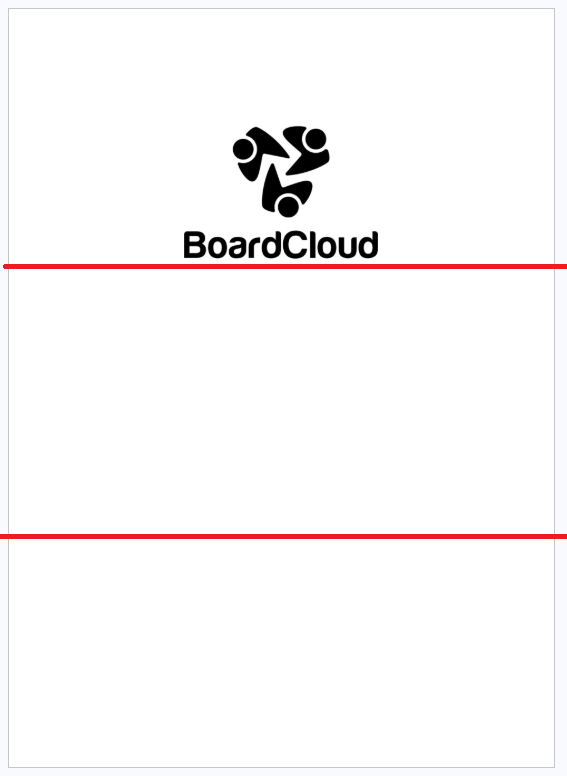
3. Leave the rest of the page blank to allow BoardCloud's meeting information to display neatly.
4. Save the document as a PDF before uploading it.
Avoid
- Uploading your logo by itself as a JPEG or PNG.
- Using a very small image that only occupies a fraction of the page.
- Stretching a logo to fill the page, which can reduce quality.
- Using screenshots or low-resolution images.