
How to Print or Download Minutes
How to Download or Print the Minutes
To download or print meeting minutes, the minutes must first be published.
Step 1: Access the Published Minutes
- Open the relevant meeting.
- Click View Published Minutes under the meeting details.
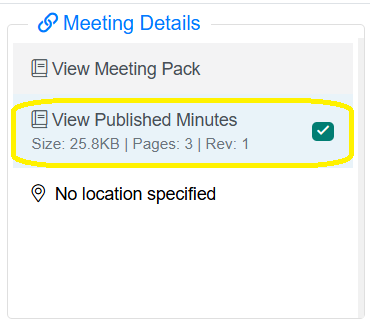
Opening the published minutes this way launches the BoardCloud Viewer, the same viewer used to read board packs. Learn more about the BoardCloud Viewer here.
Step 2: Print or Download
Print Icon
When enabled by your system administrator, this button lets you print the current published version of the minutes.
Download Icon
When enabled by your system administrator, this button lets you download the published document to your device.
Both the Print and Download icons can be found in the top-right corner of the BoardCloud Viewer.
