A Past Meeting (Closed Meeting)
A Past Meeting (Closed Meeting)
A past meeting will have a yellow band at the top to indicate that it is closed.
![Yellow Meeting Band]
What You Can Access in a Past Meeting
Even after a meeting has closed, you can still:
- View the members who were invited to attend.
- Click on a member’s name to view their profile (if profiles are visible).
- Access the online meeting link (e.g., Microsoft Teams, Google Meet, or Zoom), depending on your organization.
- View any meeting resources that were uploaded.
Agenda items will not be visible.
You cannot open the board pack directly from the agenda.
What You Cannot Access Anymore
RSVP to the meeting is no longer possible.
Agenda Section
The Agenda section is located at the bottom of the screen.
![Agenda with Documents]
You can:
Click on individual documents to view them directly in the agenda.
Participate in voting only if the vote is still open.
View any tasks assigned to you.
Board Pack
You can still:
Open your board pack and make annotations.
View your previous annotations at any time.
Learn more about the BoardCloud Viewer →
![Board Pack Views]
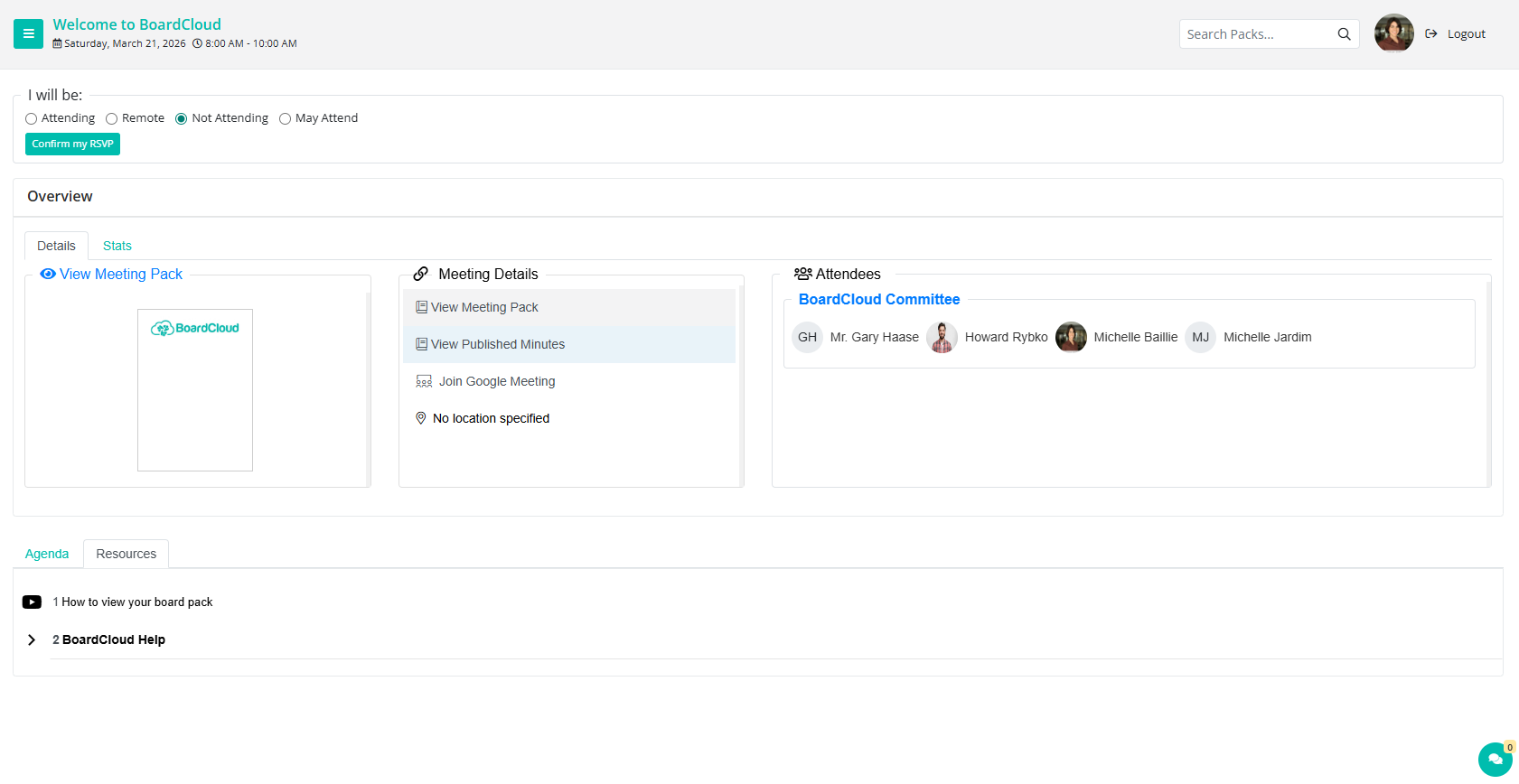
Meeting Details
![Meeting Details]
Summarize Meeting Pack: Click to summarize your meeting pack.
View Meeting Pack: Open and annotate your board pack.
View Published Minutes: Access official minutes if they have been published.
Attendance Register: Shows which invited members completed their RSVP on BoardCloud. If no RSVP was recorded, results may be inaccurate. Learn more →
Voting
Voting is locked once the meeting has passed and the admin has closed voting.
Forms
Some meetings may include forms for members to complete, such as:
- Surveys
- Declarations
- Feedback
You will usually receive a notification or email when a form requires your response.
Stats
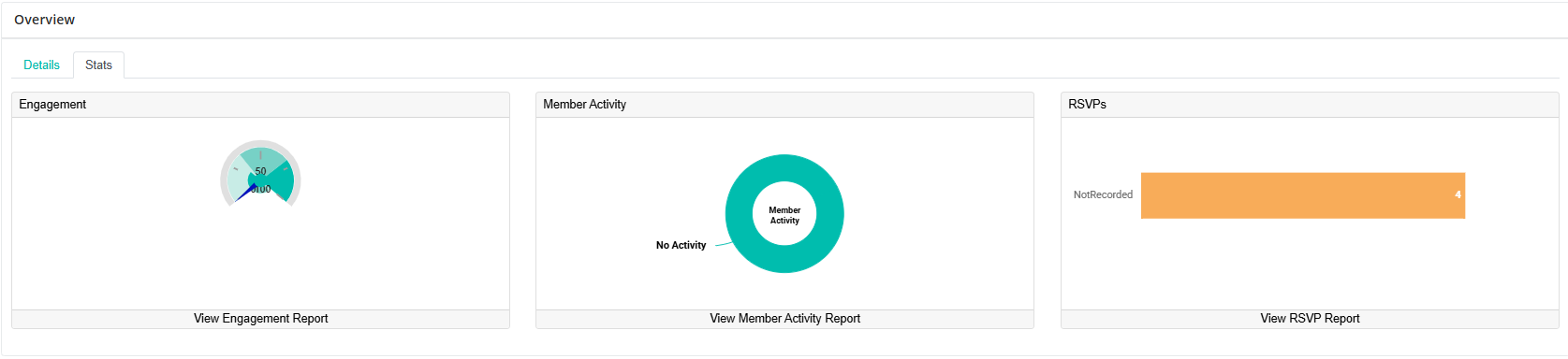
On the Stats tab:
Left:
Meeting Engagement Report: Shows member names, percentage of pack viewed, page views, and how long each member spent reading the pack.
Centre:
Member Activity Report: Shows each member, which document, number of pages, percentage read, number of times viewed, and total time spent on that document.
Right:
Attendance: Shows which members invited to the meeting completed the RSVP on BoardCloud. If an RSVP has not been recorded (by the member or an administrator on their behalf), the attendance results may not be accurate.
Resources (Meeting Resources)
Meeting Resources may include supporting documents, reference materials, policies, historical board packs, and other governance documents relevant to the meeting.
To access these, go to the Resources tab.
Click on any document to open and view it.
These documents remain available even outside scheduled meetings.
Depending on your organization's permissions, you may also be able to download or print them for offline reference.
Learn more about viewing the Resources here.
In-Meeting Chat
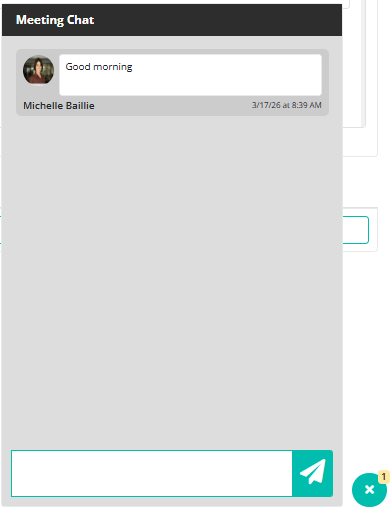
You can still view and send messages in the chat window, even for closed meetings.