
Committee eResolutions
Committee eResolutions
The Committee eResolutions section allows you to view, create, and manage electronic resolutions related to the committee.
You can view resolutions that are In Progress or Completed, as well as create a new resolution for signing.
Create a New Resolution
- Go to the Committees Dashboard
- Navigate to Committee eResolutions.
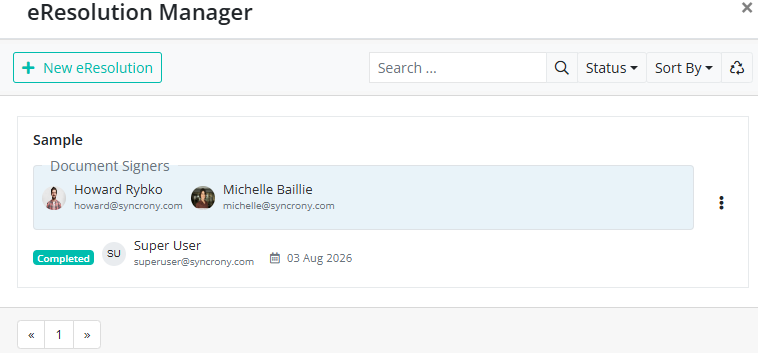
- Click + New Resolution.
- Select the document you want the committee to sign.
- Follow the on-screen instructions to set up the resolution and add the required signatories.
- Complete the setup and send the resolution for signing.
For detailed instructions, see Creating an eResolution.
View an Existing Resolution
- Go to the Committees Dashboard
- Navigate to Committee eResolutions.
- Locate the resolution you want to view.
- Click on the resolution to open it.
- Review the resolution details, including the document, signatories, signing progress, and status.
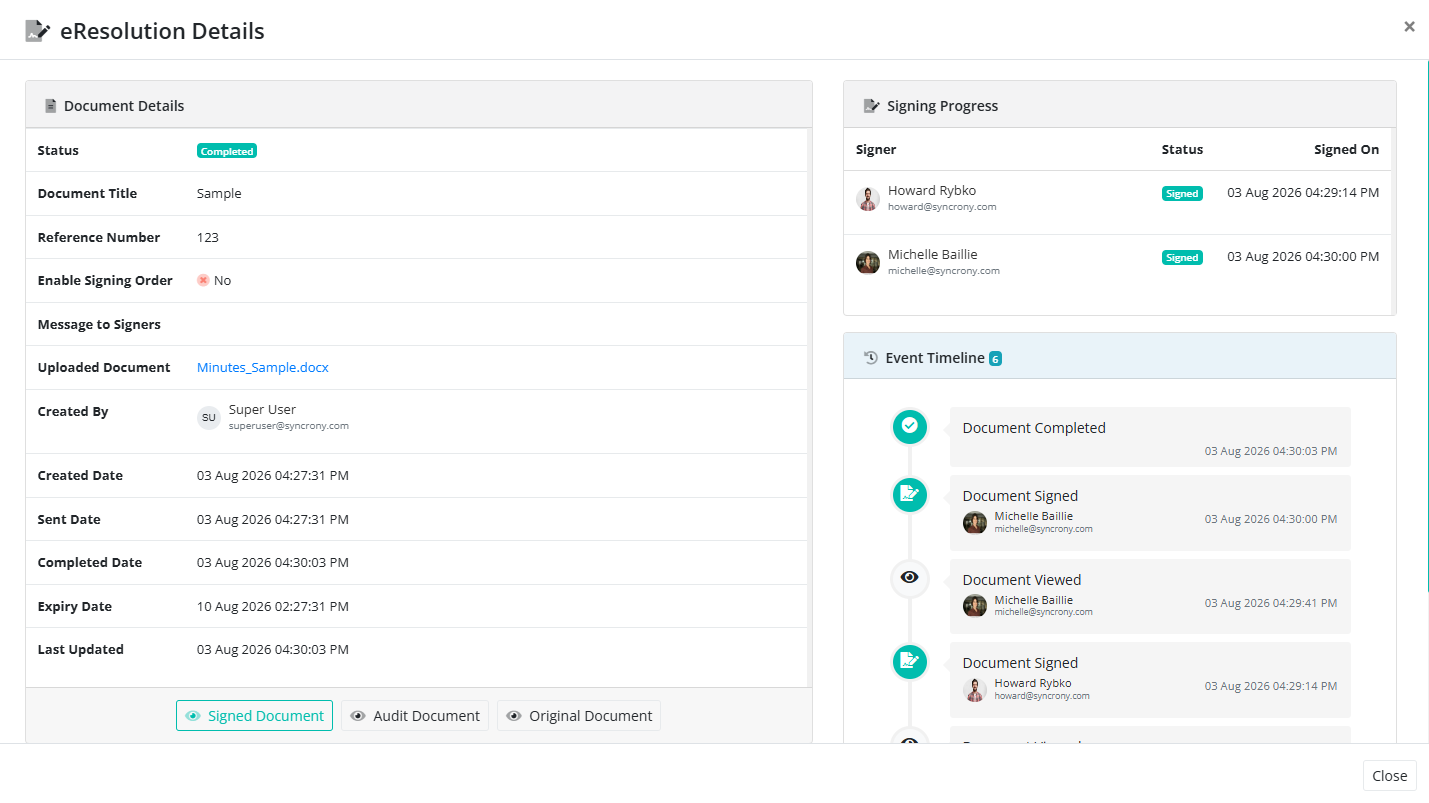
For more information, see Viewing eResolution Details.
Delete a Resolution
Administrators can delete resolutions from the Committee eResolutions section.
1. Locate the resolution you want to remove.
2. Select Delete.
3. Confirm the deletion when prompted.