
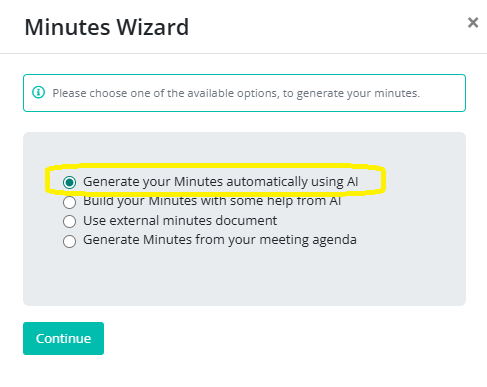
Generate your Minutes automatically using AI
Generate Your Minutes Automatically Using AI
You can automatically generate meeting minutes using AI by uploading either:
- A transcript file (.TXT or .VTT), or
- An audio recording of your meeting (.MP3)
Follow the steps below to get started.
Step 1: Upload Your Audio or Transcript File
- From the left-hand menu, click Manage.
- Select My Transcriptions.
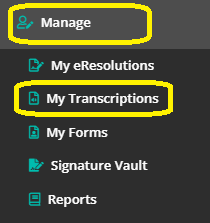
- Click Generate a Transcription.
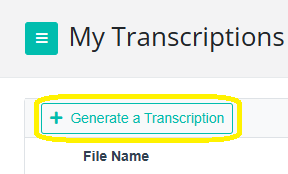
- Click Browse (or drag and drop your file) to select an audio recording or a transcript file (.VTT or .TXT).
- Click Upload.
If you upload an audio file, it will automatically be transcribed into text.
Note: Transcription takes approximately 20 minutes per hour of audio. You can continue working in the platform while the file is being processed.
Step 2: View and Manage Your Transcriptions
Once your file has been transcribed, it will appear on the My Transcriptions Dashboard.
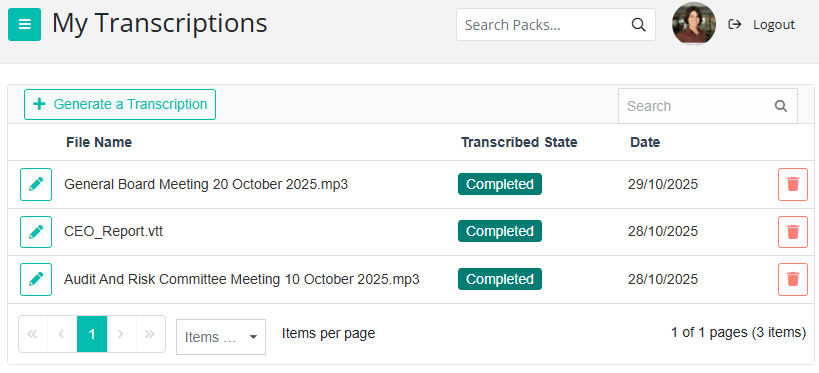
From here, you can:
- View or edit the transcription by clicking the pencil icon.
To play the audio (for audio files only), click the pencil icon and then click the play button in the pop-up window that opens. - Check the status of the file (Pending or Completed).
- See the upload date, displayed next to the file status.
- Delete a transcription using the orange bin icon.
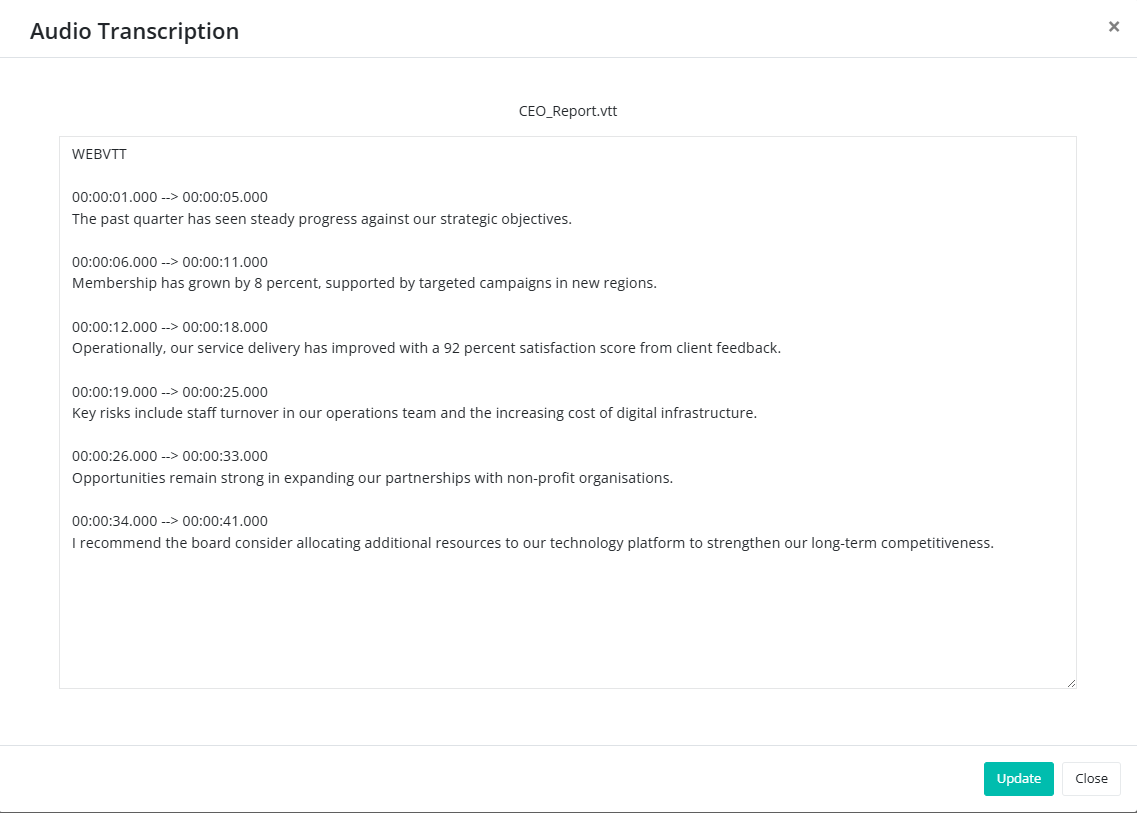
Example of a .VTT transcription snippet shown below.
Step 3: Generate Minutes Using AI
- When creating your meeting minutes, select Generate your Minutes automatically using AI.
- In the pop-up window, use the drop-down menu to connect an uploaded transcription.
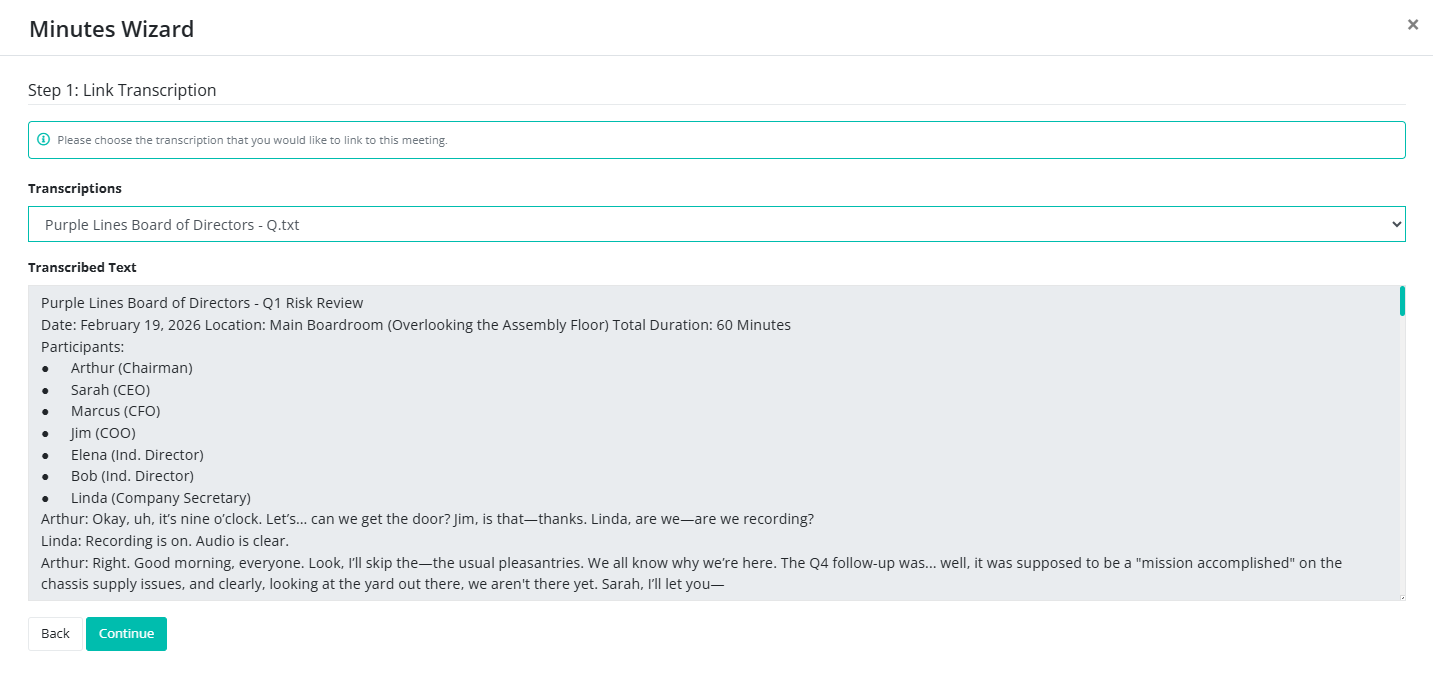
- Choose the relevant transcription from the list.
- Review the displayed text to confirm it is the correct file.
- Click Continue to load the transcription.
AI-Generated Minutes Preview
You will now see a preview of the minutes created by the AI.
These minutes are generated using:
- Your agenda sections,
- Documents in the meeting, and
- The transcript of your meeting.
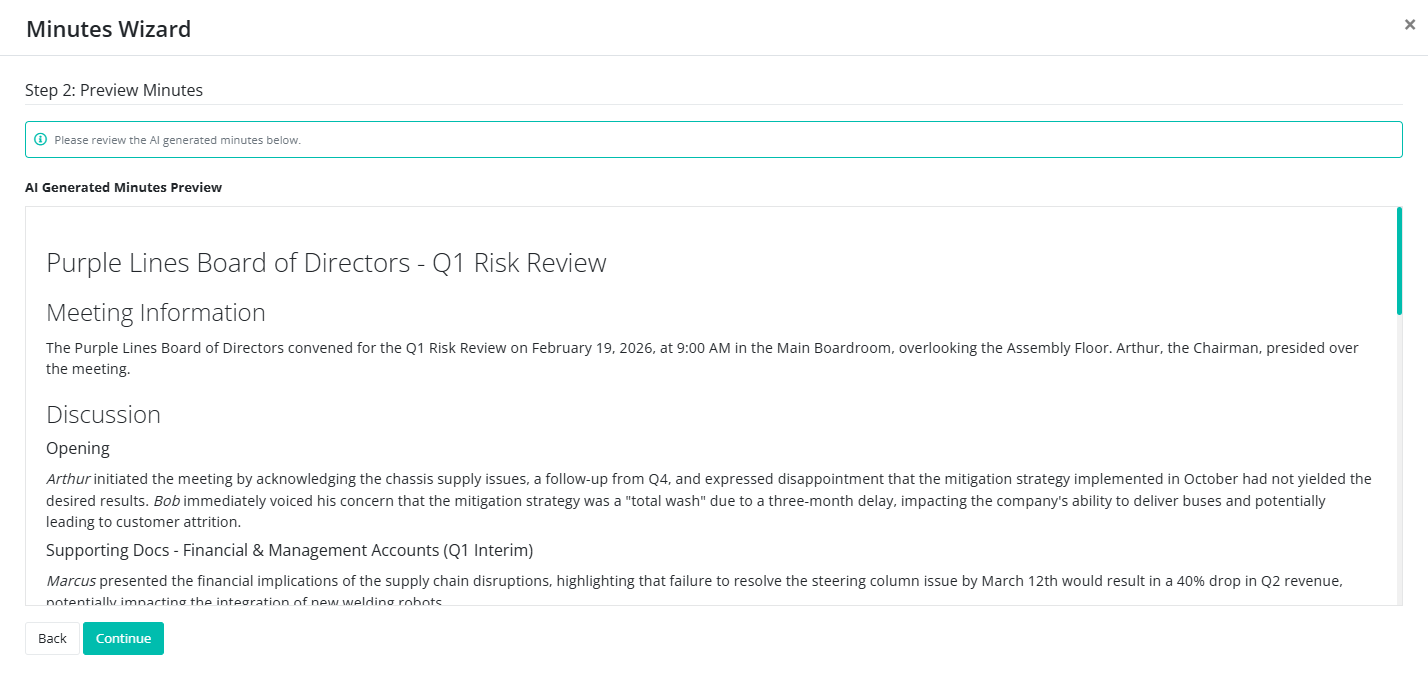
Review the preview, then click Continue.
Step 4: Minutes Options – Add Extra Details
On the next screen, you can choose to include additional information in your minutes, such as:
- Attendees
- Motions
- Tasks
Tick the options you would like to include, then click Finish.
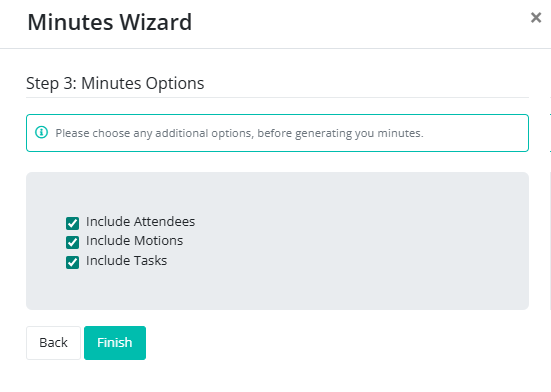
Your meeting minutes will be generated and can still be edited as normal.
Important: Resetting the minutes will completely clear the document.
How BoardCloud’s AI Generates Better Minutes
Most AI tools simply summarize a transcript. BoardCloud goes further by synthesizing the full meeting context.
Our AI combines:
- The live meeting transcript
- Your agenda structure and supporting documents
- Attendance lists, votes taken, and assigned tasks
All of this information is automatically reassembled into comprehensive, context-rich minutes, with a clear summary and action items included at the end.