
Publish Meeting
Publishing Board Meeting Packs
What Does Publish Mean in BoardCloud?
Publishing a meeting in BoardCloud occurs after the agenda has been approved and the company secretary is ready to make the meeting content available to invited members.
No members (other than admins) can view the meeting or the meeting pack until it is published. This ensures that draft packs remain private while still allowing admins to review and prepare the content.
Make sure the pack is fully reviewed and ready before publishing so members get access to the final, correct version.
Important: Publishing does not notify members. Notifications are handled separately through the Notify function.
Draft vs Published States
When a board pack is created, it remains in a Draft state. Only one current version of a pack or minutes is kept at any time. Once published, the pack becomes visible to meeting members, and you can safely email links to the documents.
Publishing a Board Pack
Once the draft pack has been reviewed and approved, it can be published.
Publishing a pack makes the pack visible to all members with access to the meeting and automatically redirects any previously emailed links to the latest published version, so you do not need to resend notifications.
How To Publish A Board Pack
- Open the meeting.
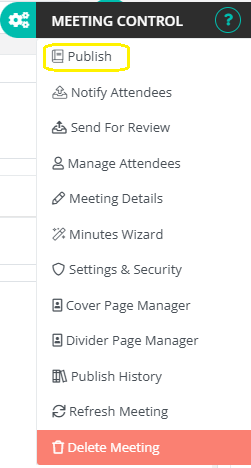
- Click the Cogs (Meeting Control) menu in the top-right corner.
- Select Publish.
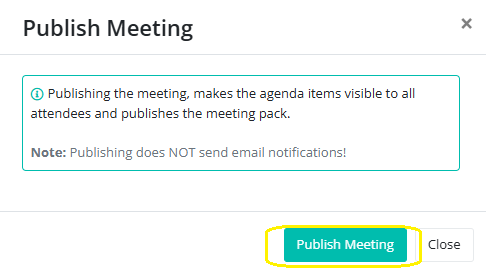
- Click On Publish in the pop-up
Confirmation That the Pack Has Been Published
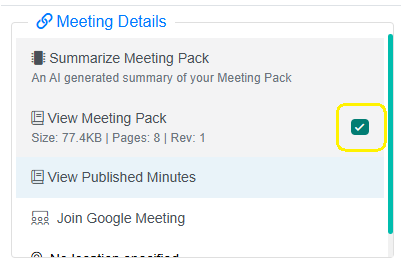
Once a pack is successfully published, a green check mark will appear next to View Meeting Pack in the Meeting Details section. This provides a quick visual confirmation that members can now access the pack.
See image below.
Restricted Documents
Documents with restricted access will not automatically appear in the pack for any members.
Only members who have permission to view these restricted documents will see them.
To access a restricted document, permitted members must click on the document within the agenda to open it.
This ensures sensitive information is only visible to authorized members, as intended by BoardCloud’s design.