
Meeting Notification Email
From the Meeting screen, the Meeting Control menu will show the Notify Attendees option.
Clicking on Notify Attendees will bring up the Send Email Notifications pop-up.
E-mail notifications sent to meeting attendees will look similar to the sample invitation below.
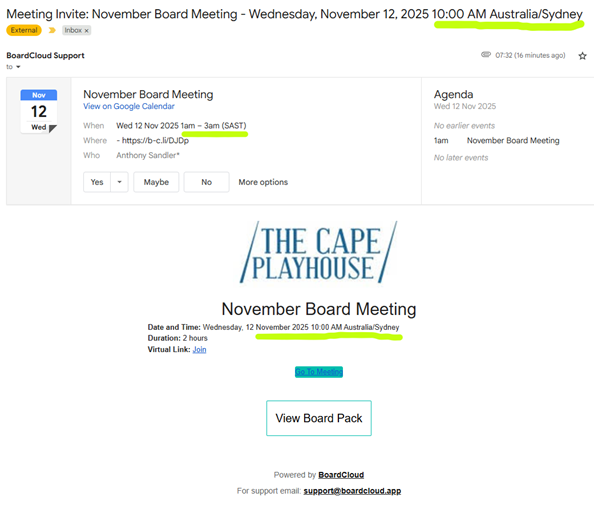
- The subject line of the meeting invitation will display the time and date of the location where the meeting was created, in this instance 10:00 AM Australia/Sydney.
- The next date and time displayed will be the meeting time in the local time of the invitee, in this instance 1am - 3am South African Standard Time (SAST). After the email is received this local date and time of the meeting will be entered into your calendar. This entry will remain in a draft state until RSVP confirmation.
- The final date and time displayed on the page will be Sydney time again.
Other Items in the Notification email to note:
Virtual Meeting Link
If you’ve added a Teams, Zoom, or Google Meet link in the Meeting Details, it will be included in the notification email, as seen in the Virtual Link in the above image.
Go To Meeting
This button will open the meeting page. Note there is an individual R.S.V.P. option for each member that will appear at the top of the meeting page. Responses to the RSVP from the meeting page are surfaced in the Stats graphs.
View Board Pack
Clicking this link will open the board packet in a new browser tab. This option allows a member to view and annotate their individual version of the packet without having to the board portal's meeting page.