
Divider Page
Divider Pages
When building an agenda, it’s common to have sections that do not include supporting documents. For example, many agendas begin with a Welcome item, which typically has no attachments.
Divider pages improve readability in longer board packs. They help directors and committee members quickly identify agenda breaks when reviewing a printed or PDF pack.
Divider pages are optional. They are most useful for long or formal board packs that are printed, shared as PDFs, or reviewed offline.
How BoardCloud Handles Empty Agenda Items
BoardCloud provides two ways to manage agenda sections that do not have attachments:
1. Exclude empty sections
The agenda item will not appear in the board packet at all.
2. Insert a divider page
The agenda item will appear as a visual break in the board packet, even though it has no supporting documents.
If you choose to insert divider pages, you will need to upload a divider page template.
Divider Page Manager
The Divider Page Manager allows you to upload and manage a divider page design used across your board packs.
Note: Only one divider page can be configured system-wide. Unlike cover pages, divider pages cannot be customized per committee or per meeting.
Divider page designs can be uploaded as:
- Most image formats, including `.png` and `.jpg`
- A single-page PDF document
The image below shows how the Divider Page Manager should appear once configured.
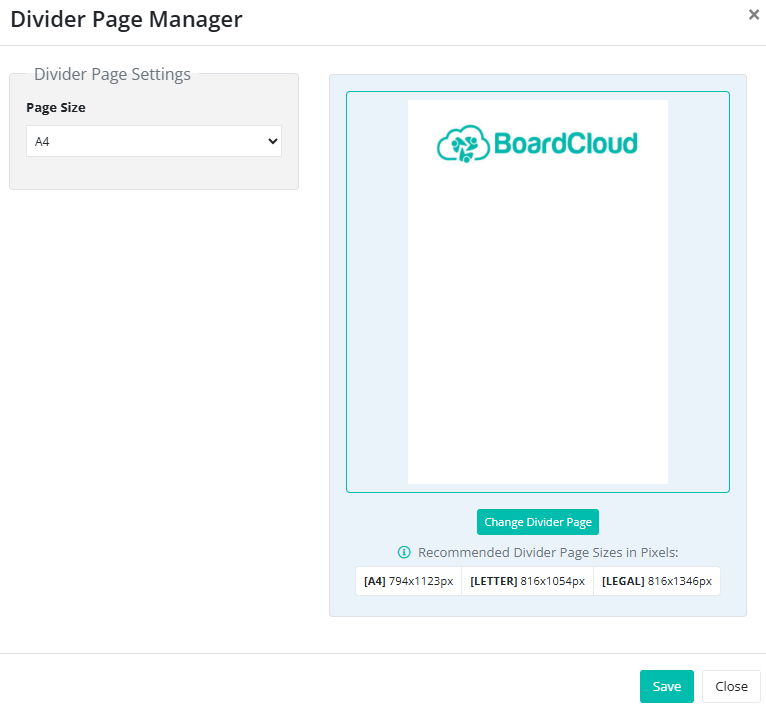
Divider Page Size
The page size setting is shown on the left-hand side of the Divider Page Manager. Available options are:
* A4
* Letter
* Legal
For exact dimensions, refer to Cover Page Sizes.
Important: Ensure your divider page size matches your cover page size to avoid layout or scaling issues in the final board packet.
Uploading Your Divider Page
Divider pages can be uploaded either as an image file or as a PDF. Once uploaded, the divider page will automatically be inserted into board packets wherever an empty agenda item is configured to display.
If you need to replace the divider page, simply upload a new file in the Divider Page Manager. The updated divider page will apply to all newly generated board packets.
Divider Page Design Tips
- Use your organisation’s logo or branding for consistency
- Keep the design clean and minimal for readability
- Avoid including meeting-specific details or page numbers, as divider pages are reused across multiple meetings and committees.
Quality Control
After adding or updating a divider page, always review the generated board packet.
Quality Control Checklist
- Divider pages appear in the correct positions within the agenda
- Page orientation (portrait or landscape) is correct
- Divider page size matches the cover page size
- Logos and text are not cropped or scaled incorrectly in the final PDF
For more information, see Checks for Board Packet Quality.