
Tracking a Resolution
Tracking a Resolution
The eResolutions dashboard provides an overview of all resolutions and their current status.
For each resolution, the page displays:
- The resolution title
- The user who created the resolution
- The selected signatories
- The current status of the resolution (for example, In Progress, Completed, Declined or Expired)
- The date and time the resolution was last updated
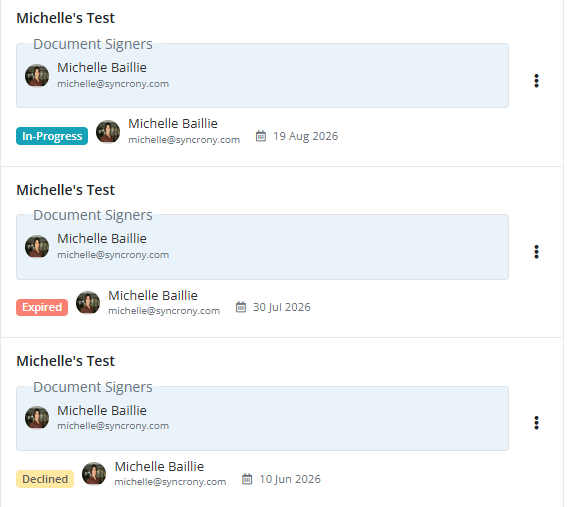
Viewing Resolution Details
Click View Details (the three dots to the right of the resolution), or click the resolution itself to open the Resolution Details window.
This screen provides a complete overview of the resolution and its signing progress.
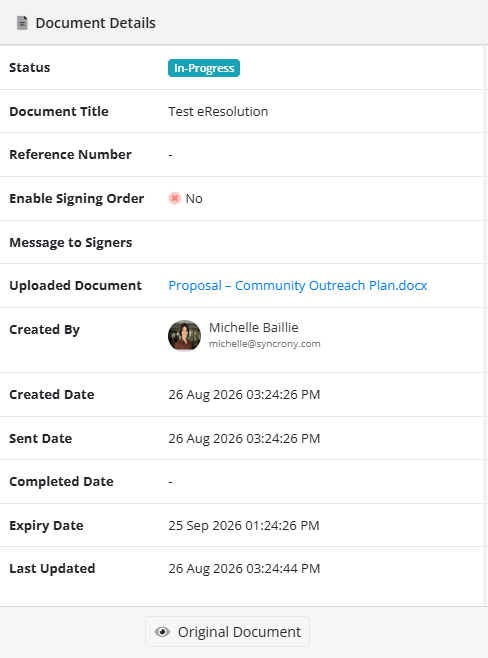
On the left-hand side, you can view the document details, including:
- Status: Can be In-Progress, Expired or Declined
- Document Title: The name of the document
- Reference Number: Optional reference number
- Enable Signing Order: Can be Yes or No
- Message to Signers: Optional message to the signers
- Uploaded Document: Original document's name
- Created By: The admin who created this eResolution
- Created Date: Date this eResolution was created
- Sent Date: The date the eResolution was sent out for signatures
- Completed Date: The Date all the signers have completed signing
- Expiry Date: The date the document cannot be signed anymore
- Last Updated: The last date and time someone interacted with the document
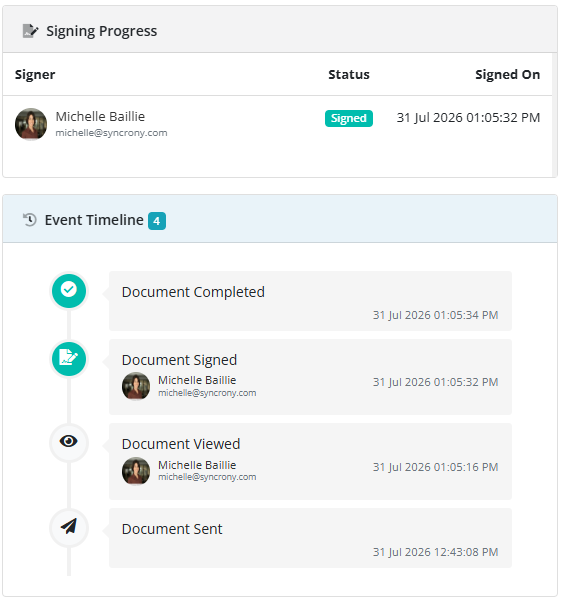
On the right-hand side, you can monitor the signing process using:
Signing Progress: Displays the status of each signatory.
Signer: Lists the first names, last names and email addresses of the signers
Status: Whether or not the person has signed, declined, or not yet signed
Signed On: Date and time the document was signed
Event Timeline: Records all activity relating to the resolution, including when requests were sent, viewed, signed, or completed, from latest to first. It shows in brackets how many events there were.
Possible Events:
Document Completed
Document Declined
Document Viewed
Document Sent
Document Expired
Each event will display:
Name of member
email address of member
date and time it occurred
As signatories view and sign the document, the Signing Progress and Event Timeline sections are updated automatically. Once all required signatures have been completed, the resolution status will change to Completed on both the Resolution Details window and the main Resolutions page.
The Current State of the Resolution
In-Progress – The resolution is currently active and awaiting action or responses.
Completed – The resolution process has been completed successfully.
Declined – The resolution was declined and did not receive the required approval.
Revoked – The resolution has been withdrawn or cancelled before completion.
Expired – The deadline for responding to the resolution has passed.
Needs Attention – The resolution requires further action or review.