RSVP To A Meeting
RSVP to a Meeting
BoardCloud allows members to RSVP to meetings so administrators can track attendance in advance.
You can RSVP in two ways: from the meeting notification email or directly from the Meetings dashboard.
RSVP from a Meeting Notification Email
If you receive a meeting notification email, it will include an RSVP button.
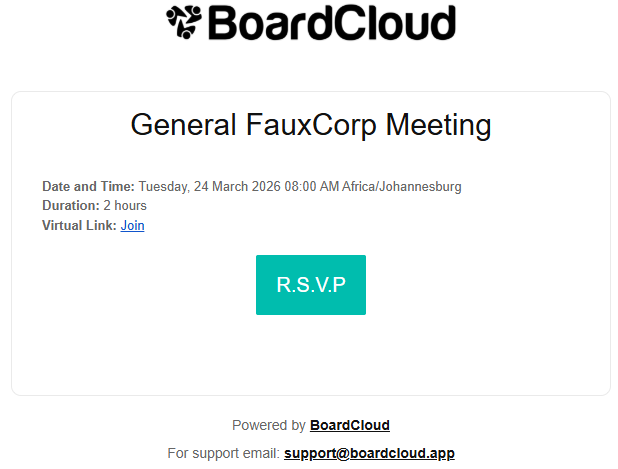
- Click the RSVP button in the email.
- You will be taken directly to the relevant meeting in BoardCloud.
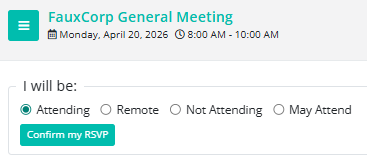
- Select your RSVP option.
- Click Update My RSVP to save your response.
RSVP from the Meetings Dashboard
- Log in to BoardCloud.
- Go to the Meetings section.
- Select the meeting you want to RSVP to.
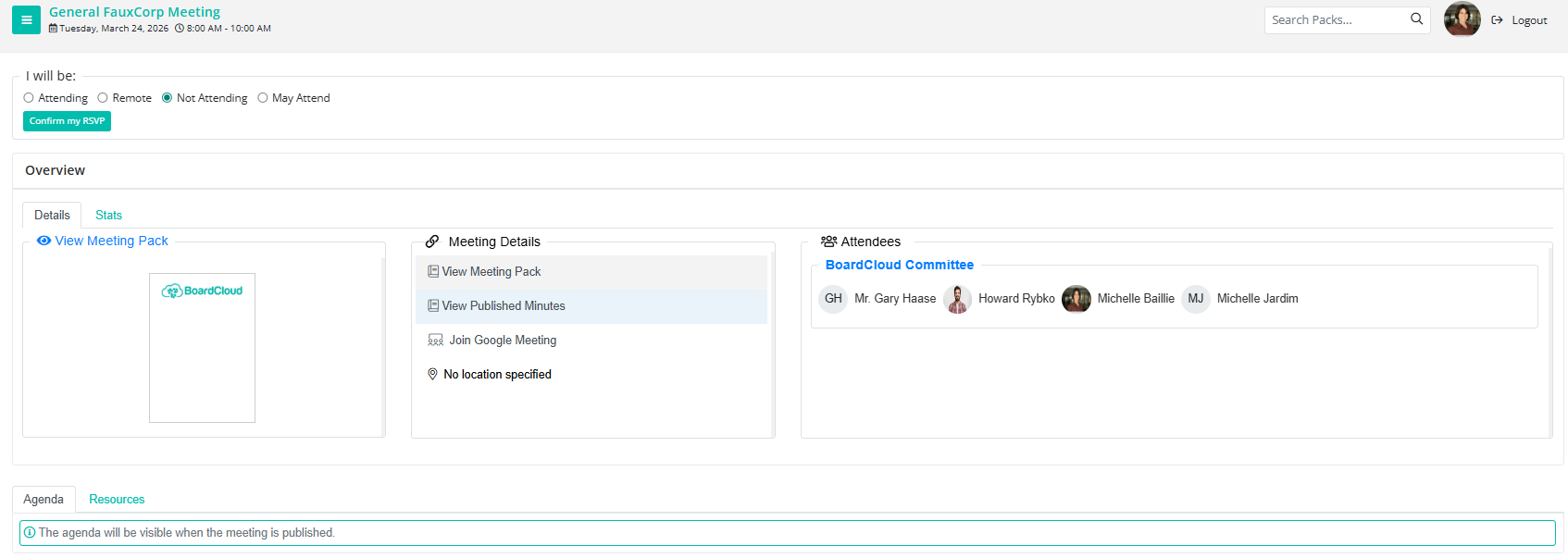
- In the top-left corner of the meeting screen, choose one of the following options:
- Attending – You will attend the meeting in person.
- Remote – You will attend the meeting remotely.
- May Attend – Your attendance is not yet confirmed.
- Not Attending – You will not attend the meeting.
- Click the circle next to your preferred option.
- Click the green “Update My RSVP” button to save your selection.
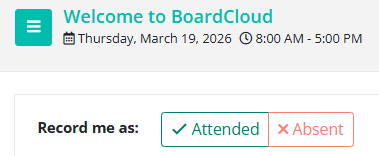
You can only select one option at a time, but you can change your RSVP later if your availability changes.
Important Notes
The administrator can also update your RSVP on your behalf if necessary.
You may not yet be able to view the meeting contents or board pack. This usually means the meeting has not been published yet. Once the administrator publishes the meeting, the documents will become available.
Viewing RSVP Statistics
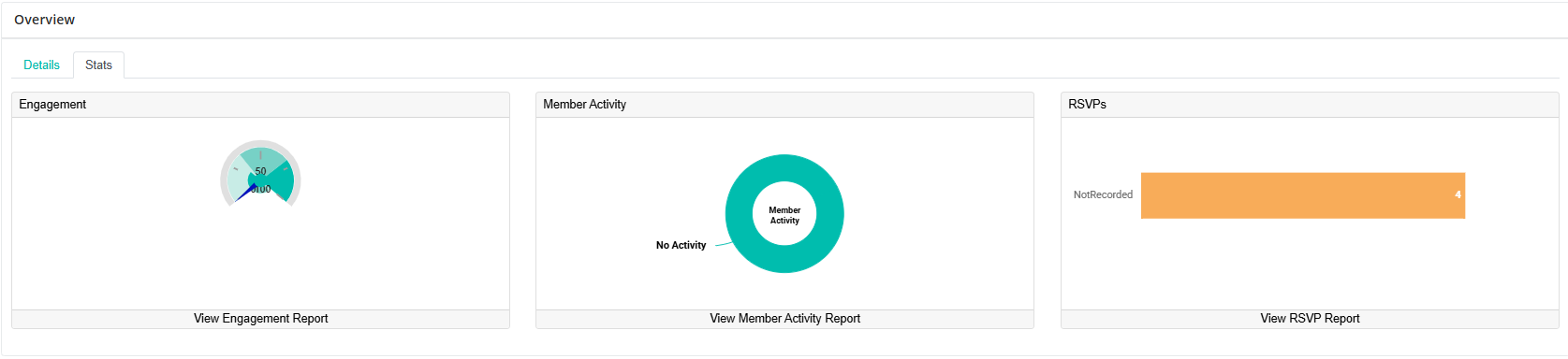
You can view attendance feedback from other members in the Stats tab.