An Unpublished Meeting
Unpublished Meetings
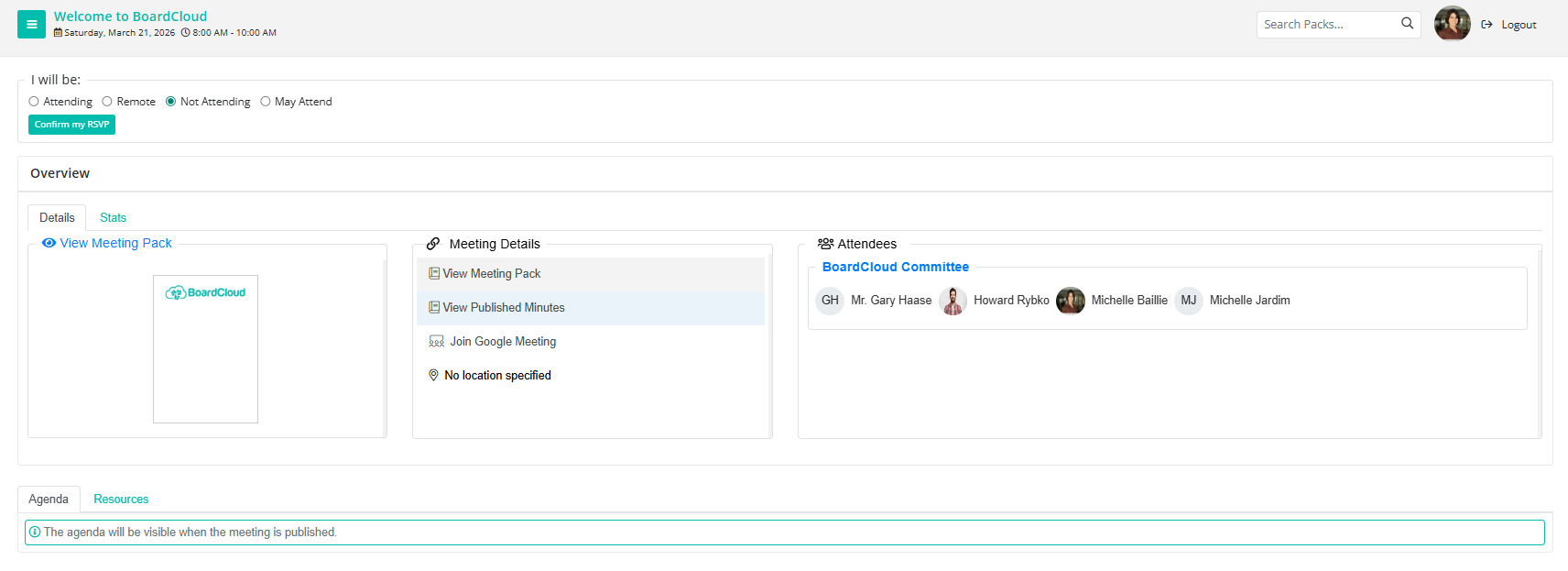
You may sometimes see a meeting in your Meetings dashboard that has not yet been published by the administrator. While some features are limited until the meeting is published, there are still several things you can access.
What You Can Access in an Unpublished Meeting
Even if a meeting has not yet been published, you can still:
- RSVP to the meeting
- View the members invited to attend
- Click on a member’s name to view their profile (if profiles are visible)
- Access the online meeting link (such as Microsoft Teams, Google Meet, or Zoom), depending on what your organization uses
- View any meeting resources that have been uploaded
What You Cannot Access Yet
Some items only become available once the meeting is published.
Before publication:
- The agenda items will not be visible
- You cannot open the board pack from the agenda
- Some meeting content may still be hidden while the administrator finalizes the meeting
Board Pack
For unpublished meetings, the board pack cannot be accessed because the admin is still building the meeting pack.
Meeting Details
Depending on the meeting configuration, you may see several options in the meeting panel, such as:
- Summaries Meeting Pack: Generates a quick overview of the meeting documents.
- View Meeting Pack: Opens the full board pack for review.
- View Published Minutes: Displays the minutes from this meeting. This is typically only available once the meeting has passed and the minutes have been finalized and published by the administrator.
- Attendance Register: Displays attendance information for the meeting.
Some of these options may only become available after the meeting has been published.
Voting
Voting will only be available if the meeting is published and the administrator opens a vote for members.
Tasks
You may receive an email notification when a task is assigned to you. Clicking View Task Details in the email will take you to your Tasks Dashboard.
For meetings that have not yet been published, the tasks linked to that meeting will not appear within the meeting or the meeting agenda. Instead, they will only be accessible from the Tasks section of the system.
Once the meeting is published, the tasks may also become visible within the meeting context.
Forms
If forms have been created for the meeting, members may be asked to complete them.
You will typically receive a notification or email when a form requires your response.
You cannot complete a form for a meeting that has not yet been published.
Stats
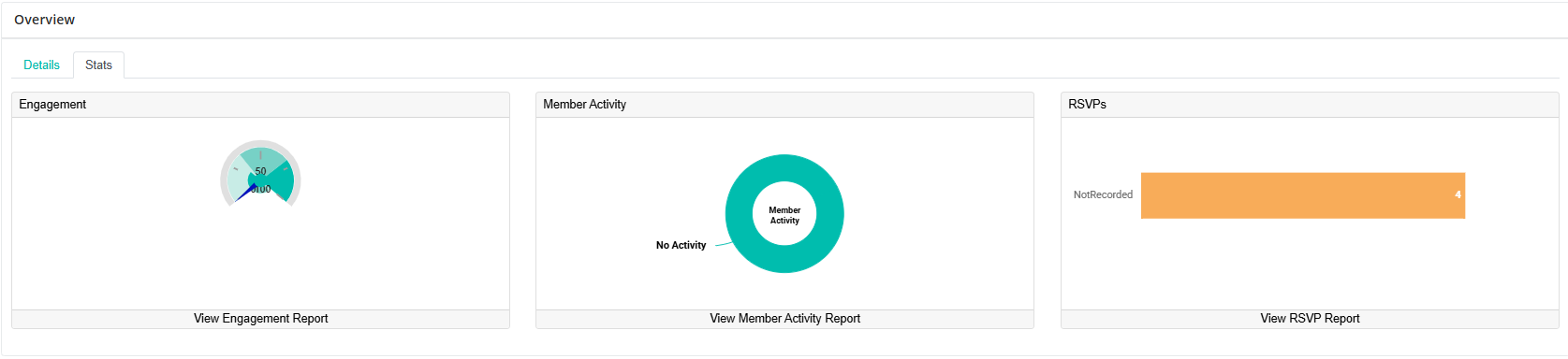
On the Stats tab:
Left:
Meeting Engagement Report: Shows member names, percentage of pack viewed, page views, and how long each member spent reading the pack.
Centre:
Member Activity Report: Shows each member, which document, number of pages, percentage read, number of times viewed, and total time spent on that document.
Right:
Attendance: Shows which members invited to the meeting completed the RSVP on BoardCloud. If an RSVP has not been recorded (by the member or an administrator on their behalf), the attendance results may not be accurate.
Resources (Meeting Resources)
Meeting Resources may include supporting documents, reference materials, policies, historical board packs, and other governance documents relevant to the meeting.
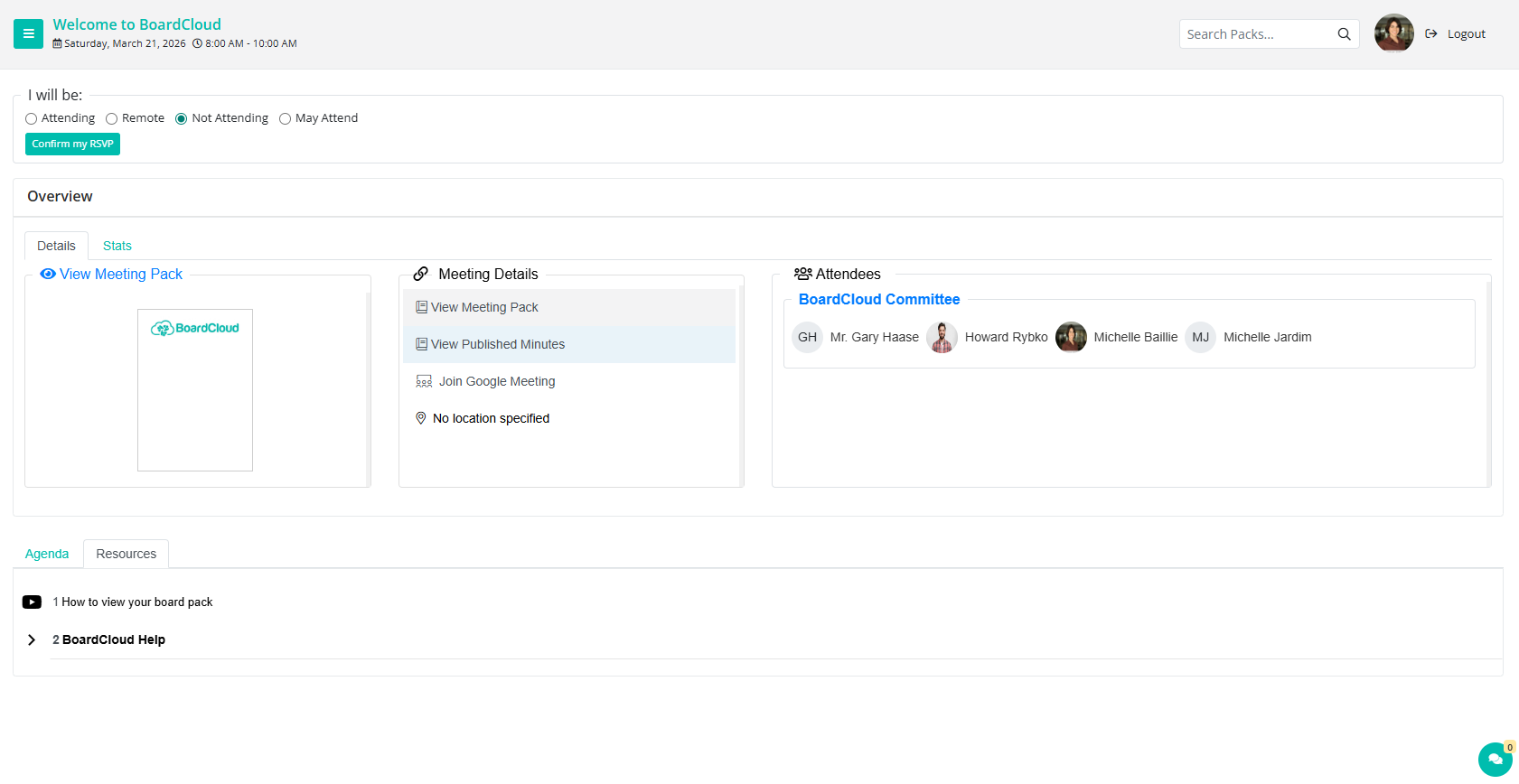
To access these, go to the Resources tab.
Click on any document to open and view it.
These documents remain available even outside scheduled meetings.
Depending on your organization's permissions, you may also be able to download or print them for offline reference.
Learn more about viewing the Resources here.
In-Meeting Chat
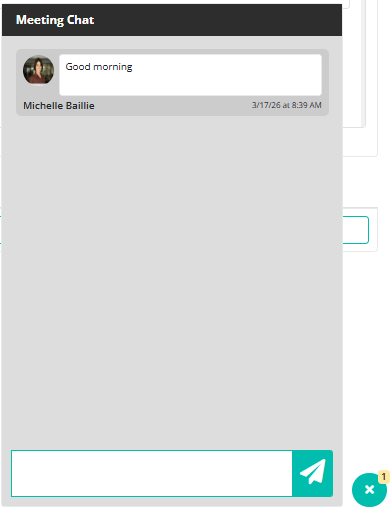
You can view and type new messages in the chat window.