
Meeting Dashboard
Meetings Dashboard
My Dashboard
This is the page you will land on when you log in from the URL.
See the login page to learn about the URL.
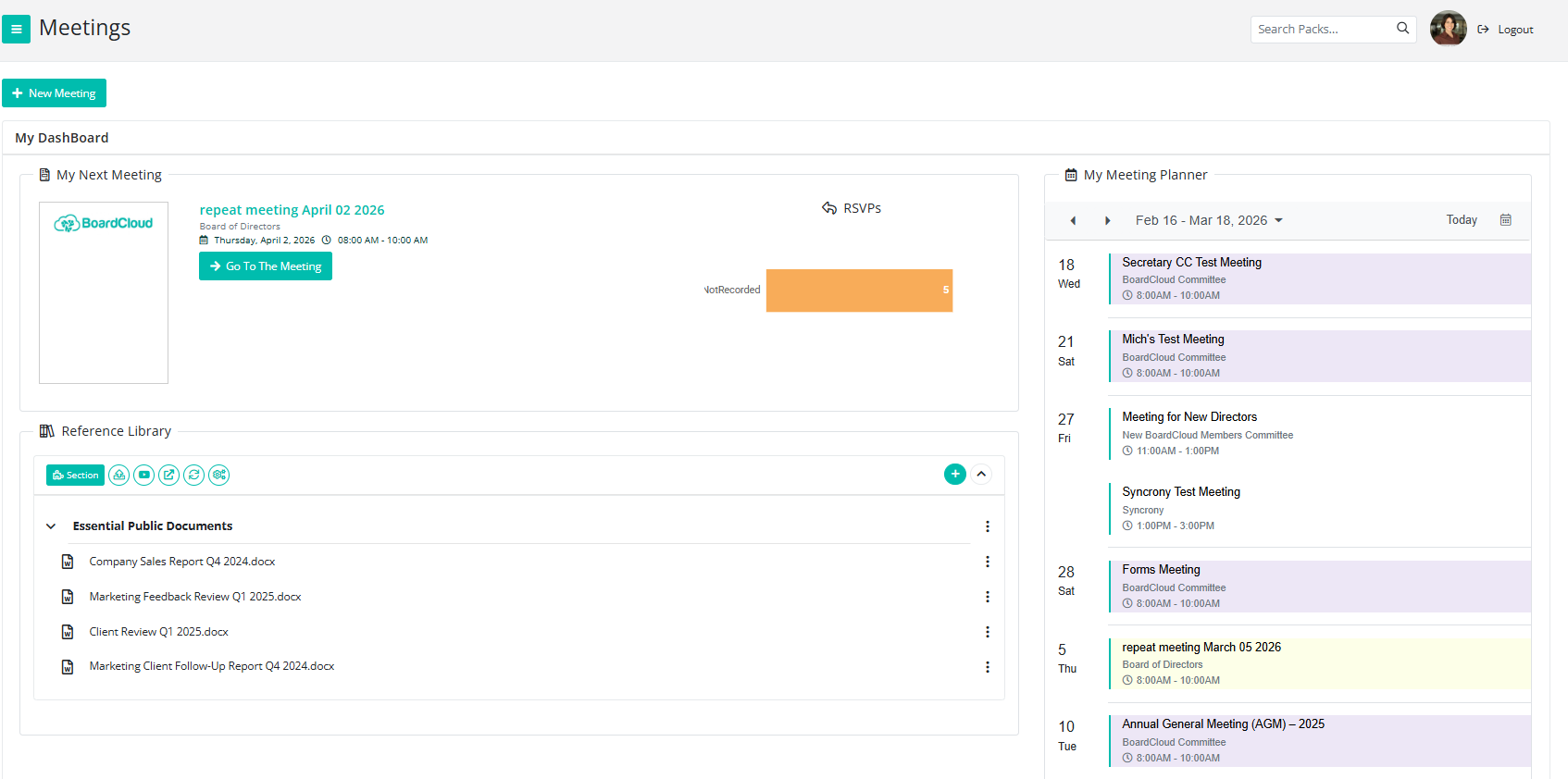
Your Dashboard will display your next upcoming meeting. If you have more than one meeting scheduled on the same day, the earliest upcoming meeting will be shown. If there are no upcoming meetings, this section may appear empty.
To access the meeting, simply click on:
- The meeting name
- The board pack image
- The green “Go To The Meeting” button
All of these options will take you directly to that meeting.
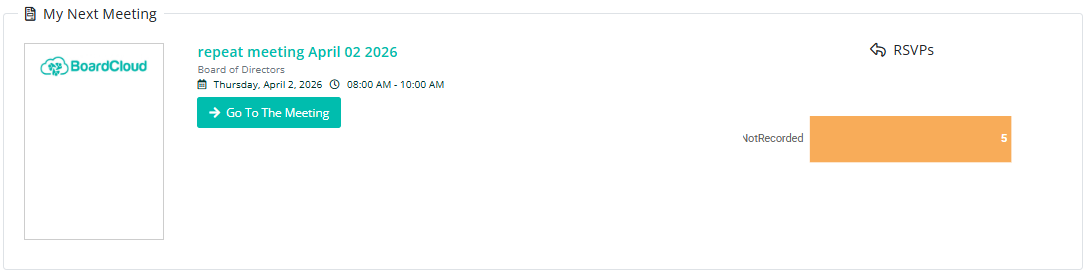
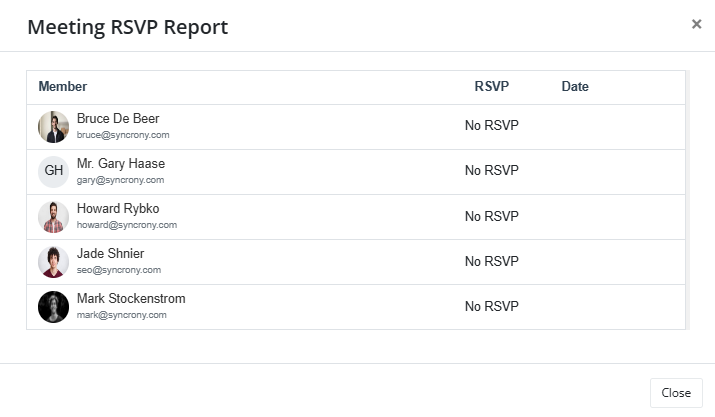
There is also an RSVP button. Clicking this will open a brief report showing which attendees have responded to the meeting invitation.
My Meeting Planner
On the right-hand side of the screen, you will see your My Meeting Planner.
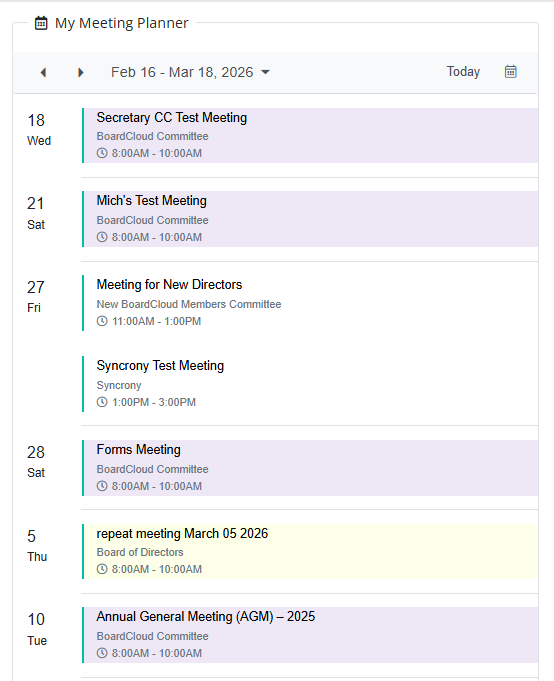
This section displays all your upcoming meetings for the month across all committees you are a member of.
If your organization has enabled color coding for committees, meetings will appear in different colors, allowing you to identify the relevant committee at a glance.
Each meeting “slot” displays:
- The date and day of the week
- The meeting name
- The committee name
Navigating the Planner

Use the navigation arrows to move to the previous or next month.
Click Today to quickly return to the current date.
Click the small calendar icon to open the Year Planner.
The Year Planner allows you to view your month, or even your entire year, at a glance, including both upcoming and past meetings.
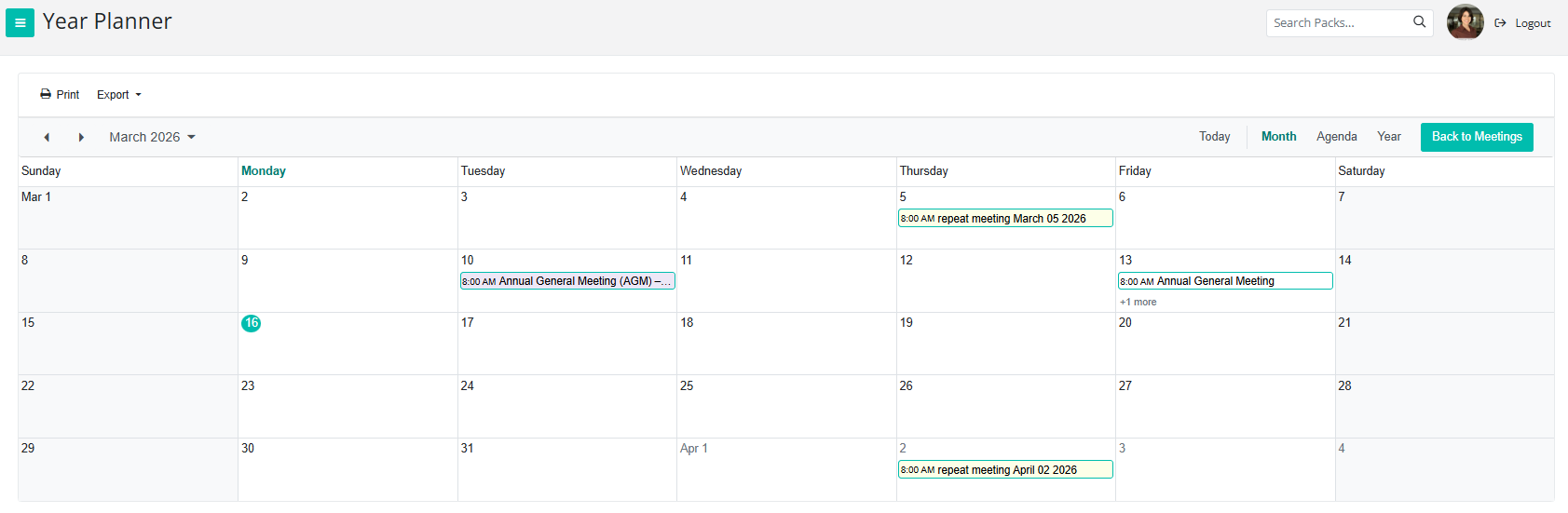
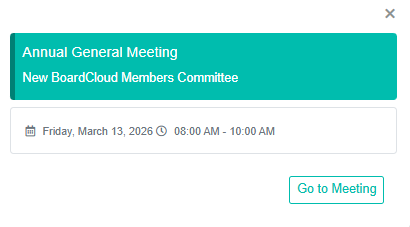
There is also an Agenda view, which uses the same layout as the calendar on the main meeting landing page (My Meeting Planner).
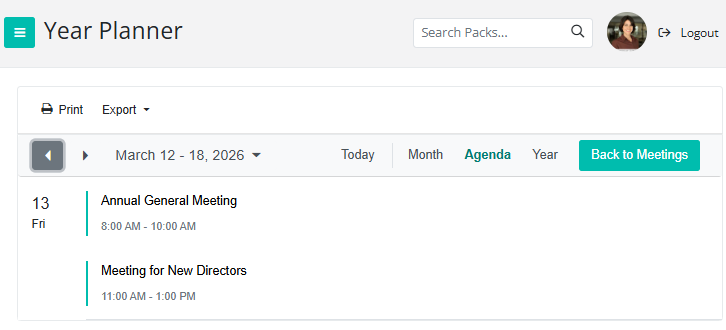
You can:
- Print the Year Planner
- Export it as an Excel spreadsheet
- Export it as an iCalendar file to upload to your personal calendar
You can click on any meeting within My Meeting Planner to open the corresponding meeting directly.
Reference Library
The Reference Library contains additional documents relevant to your organization, such as policies or governance documents.
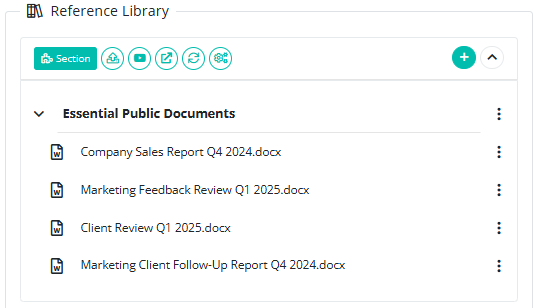
If administrators have not yet uploaded any documents, this section may appear empty.
To open a document, click on the icon to the left of the document name.
Documents open in BoardCloud Reader View, which provides a simplified viewing experience. Some features, such as annotations, are not available in this view.