
Secretarial CC Function
Secretarial CC Function
The Secretarial CC function allows administrators to copy a board member’s secretary or assistant on meeting notification emails. This ensures they are informed of upcoming meetings and can assist with diary management, while maintaining secure access to board documents within the portal.
Please note:
- This sends meeting notifications only.
- The secretary will not receive the board pack.
- The secretary will not be able to access the portal unless they have login credentials.
When Should This Be Used?
This feature is helpful when board members rely on personal assistants or executive secretaries to manage their calendars and meeting reminders.
How to send meeting notifications to a board member’s secretary
Step 1: Create the “Secretary Email” Profile Property
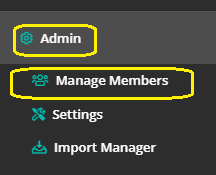
- Go to Admin → Manage Members.
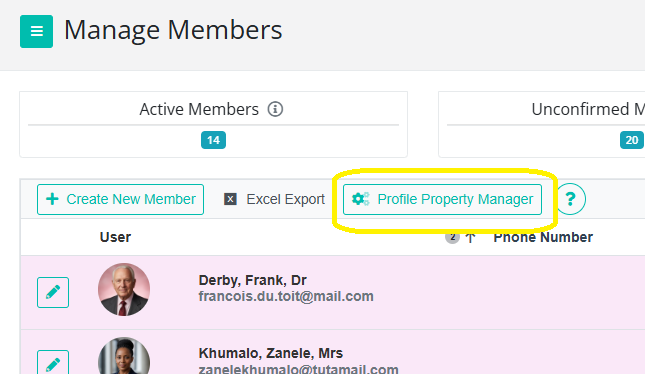
- Click Profile Property Manager (at the top of the screen).
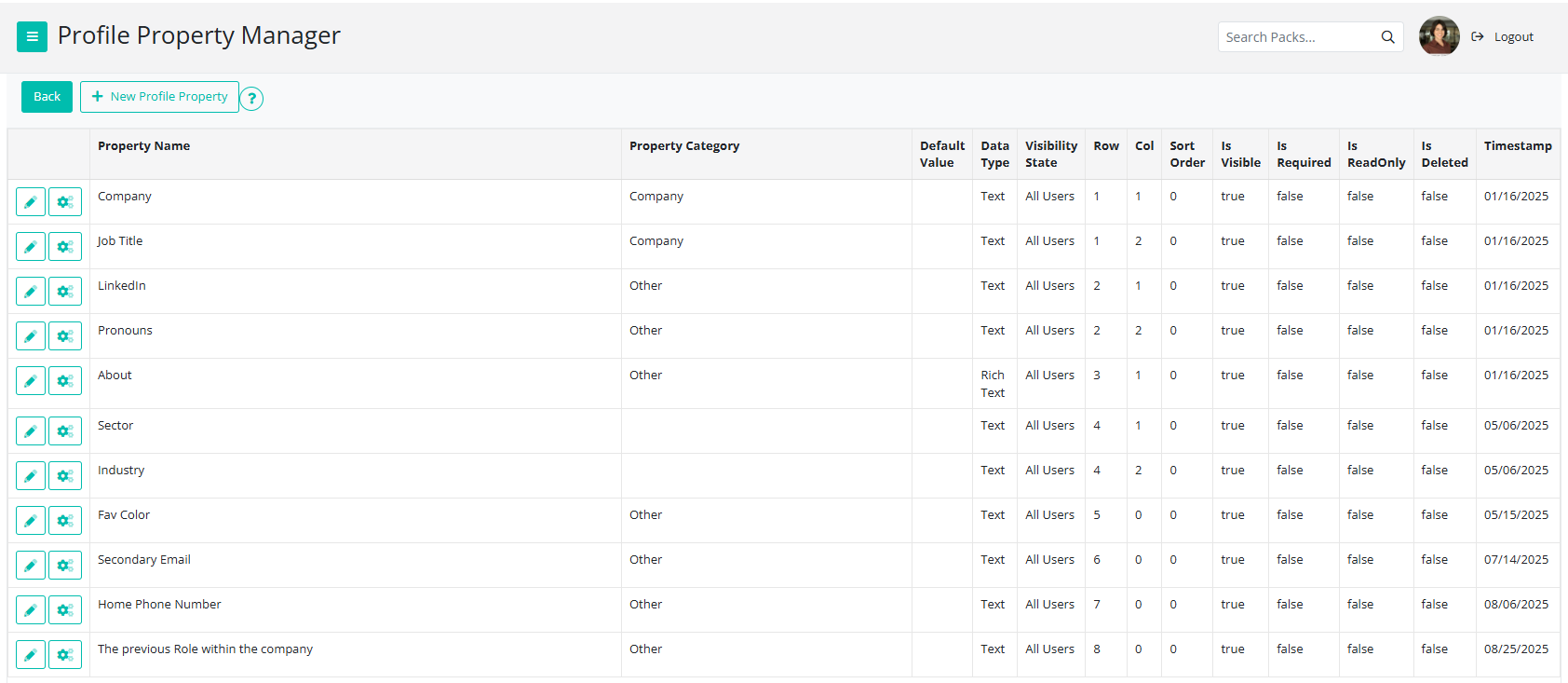
- Click + New Profile Property.
- Complete the fields as follows:
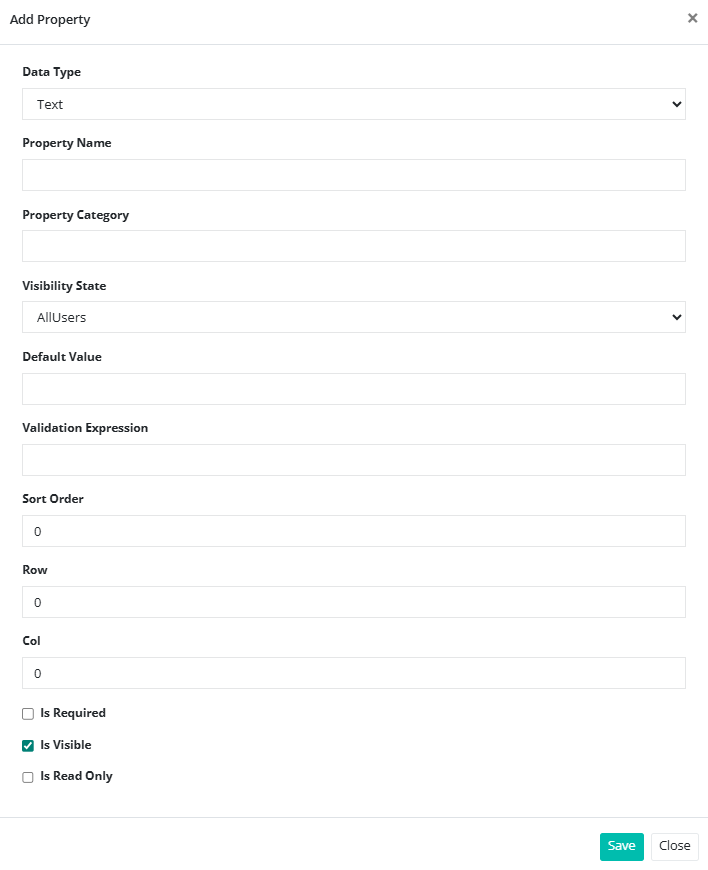
Data Type: Text
Property Name: Secretary Email
Property Category: Secretary
Validation Expression:
/^((?!\.)[\w-_.]*[^.])(@\w+)(\.\w+(\.\w+)?[^.\W])$/gim;
This validation ensures that the email entered is in the correct format.
Row: 2
Col: 1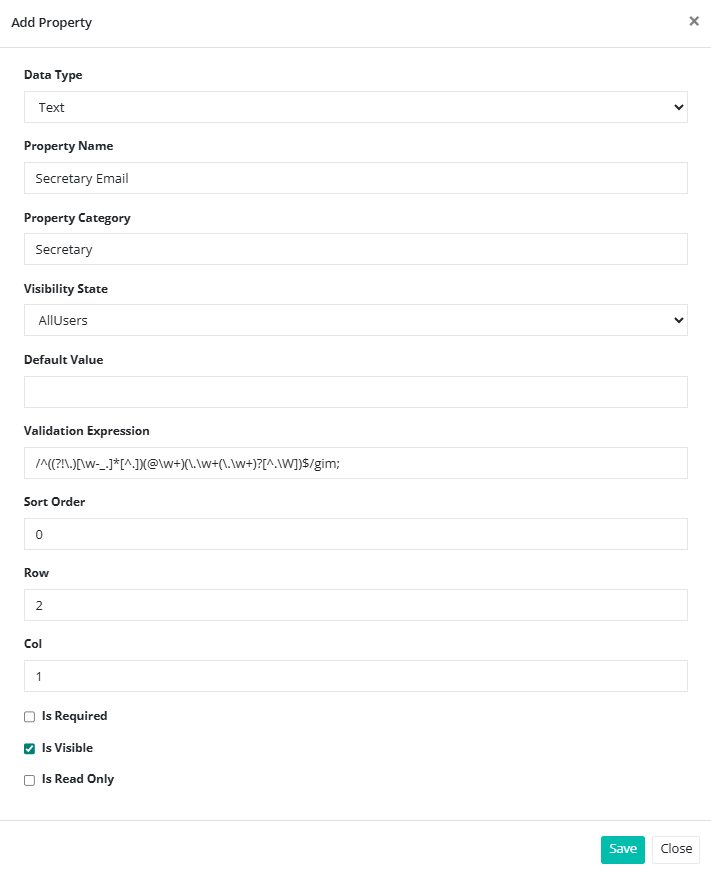
- Click Save.
Step 2: Create the “Secretary CC” Profile Property
- Click + New Profile Property again.
- Complete the fields as follows:
Data Type: Text
Property Name: Secretary CC
Property Category: Secretary
Default Value: false
Row: 3
Col: 1
Setting the default value to false ensures that notifications are only sent when this is manually changed to true for a specific member.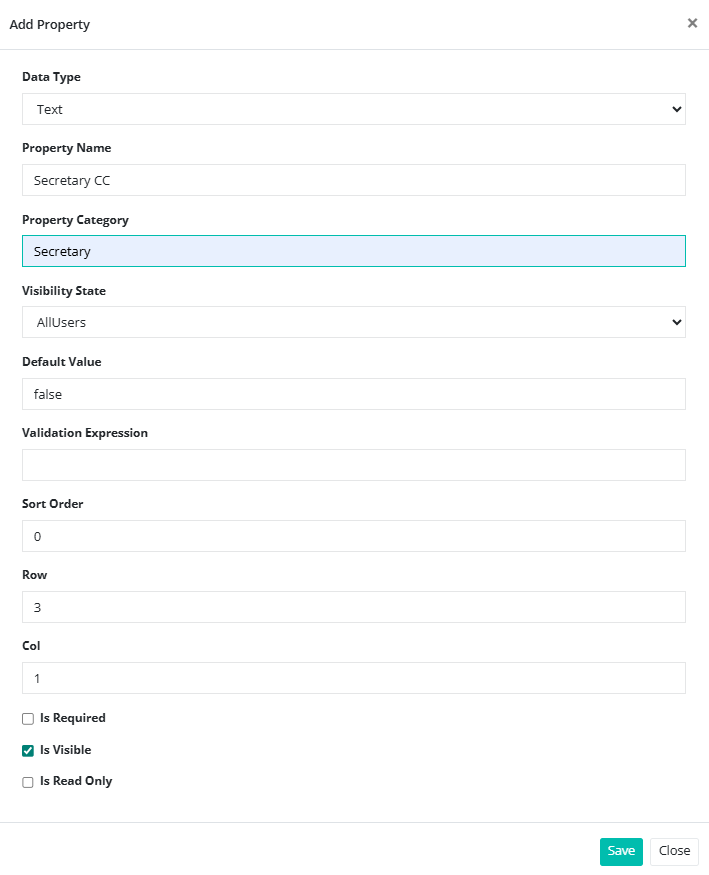
- Click Save.
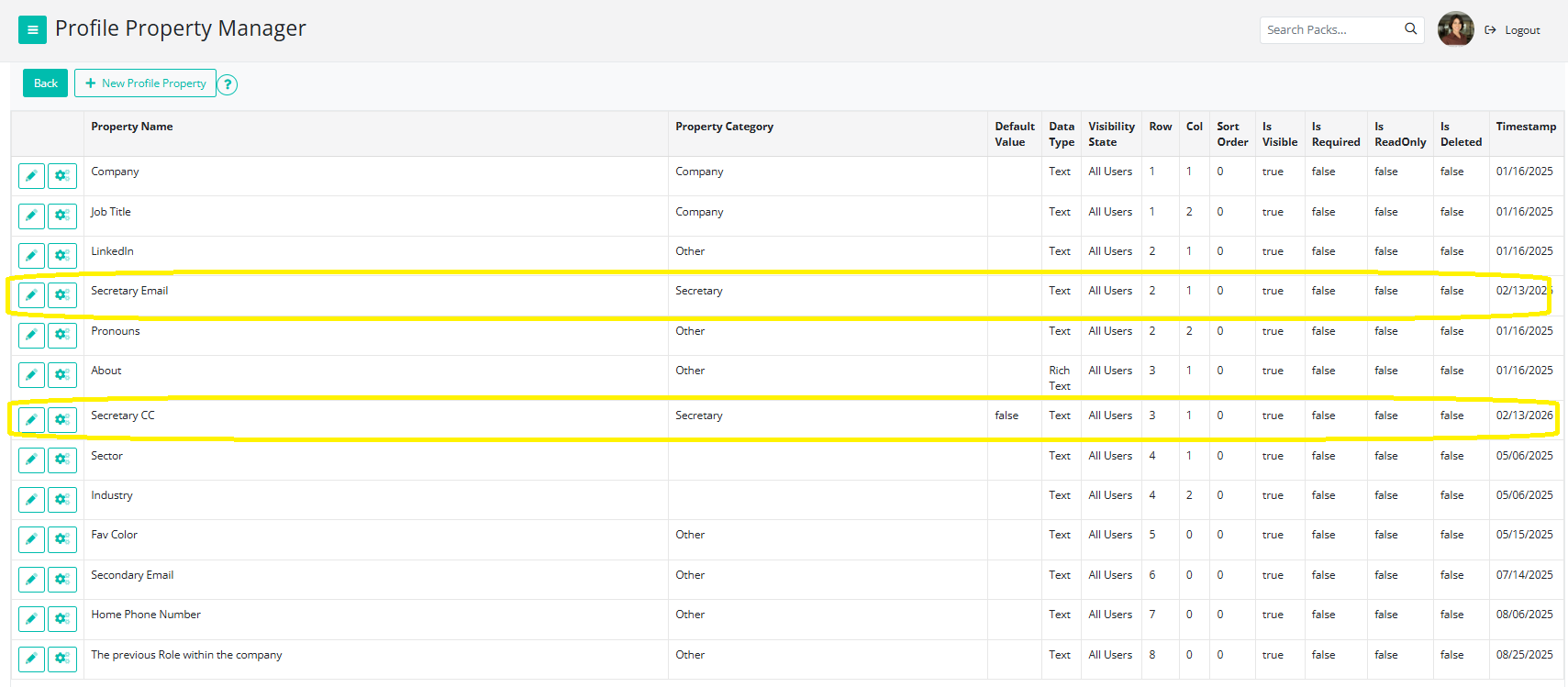
Step 3: Add a Secretary to a Board Member’s Profile
- Go to Admin → Manage Members.
- Locate the relevant board member.
- Click the pencil icon to edit their profile.
- Scroll to the bottom of the profile page.
- You will now see the two new fields you created
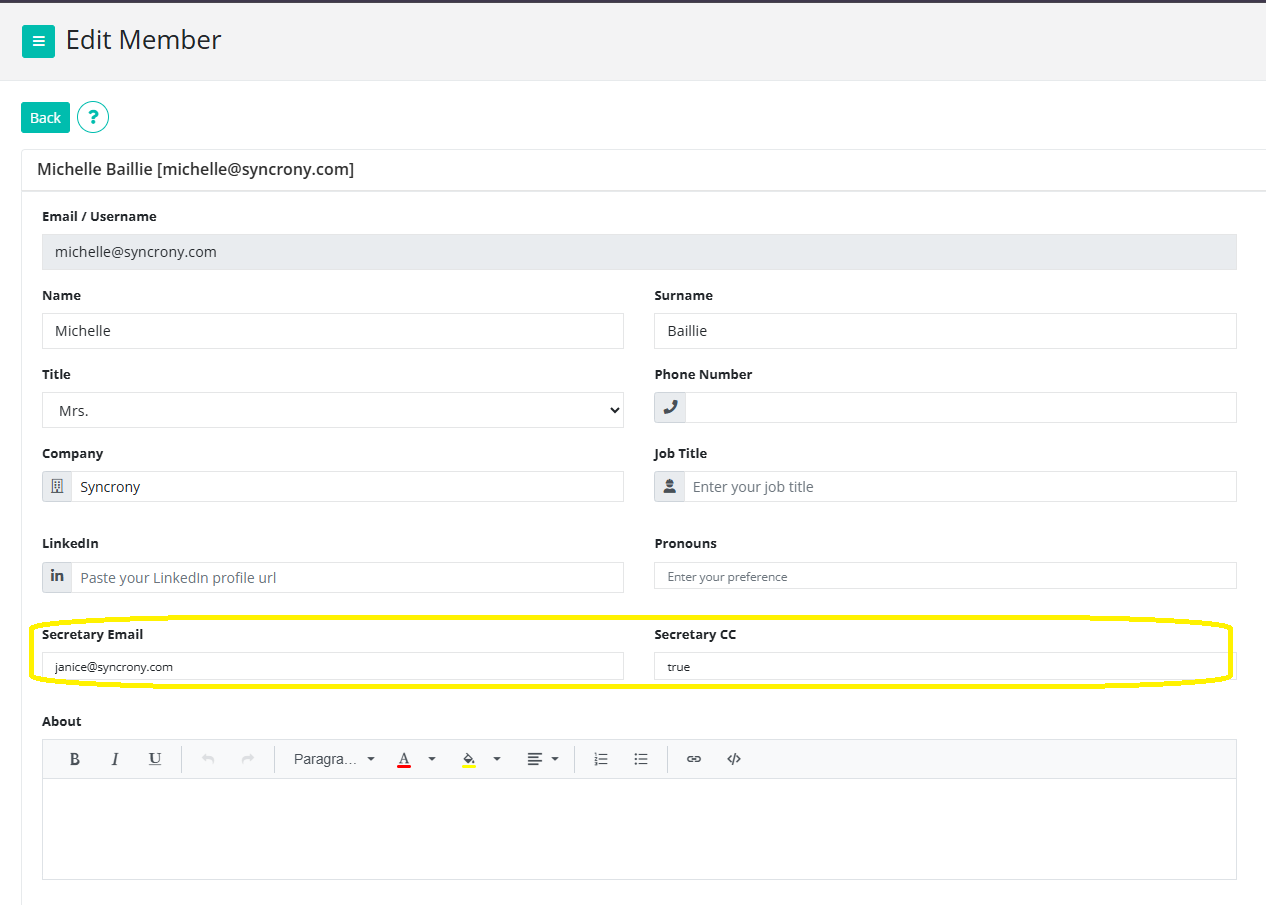
- Enter the secretary’s email address in Secretary Email.
- In Secretary CC, type (All lowercase.): true
- Click Update.
What Happens Next?
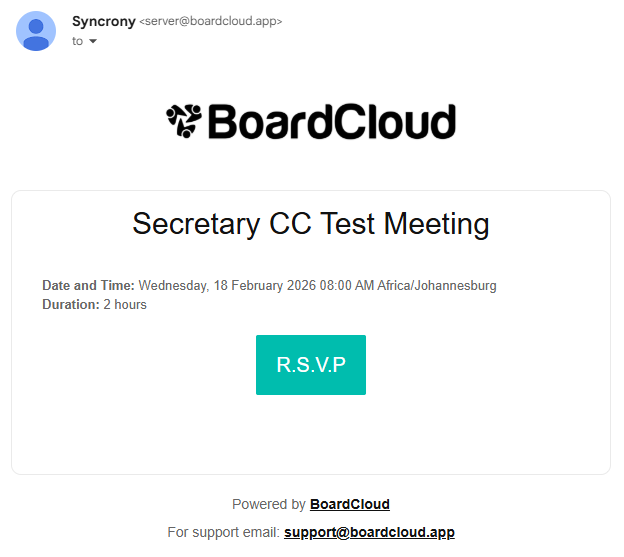
When you send a meeting notification:
- The board member will receive the email.
- The secretary will also receive a copy of the notification.
- If the secretary clicks any link within the email, they will be redirected to their organization's BoardCloud login page.
- The secretary cannot RSVP on behalf of the member (unless they have login details).
- The secretary cannot access meeting documents or the board pack.
Important Notes
- If left as false, no notification will be sent.
- If the email address is entered incorrectly, the secretary will not receive the notification.
- Notifications must be sent after the Secretary CC field has been updated.
Troubleshooting
If the secretary is not receiving notifications, please check:
- The email address is entered correctly.
- The Secretary CC field is set to true.
- The meeting notification was sent after updating the profile.
- The email has not gone to spam or junk folders.