Index Page Settings
Index (Agenda) Page Settings
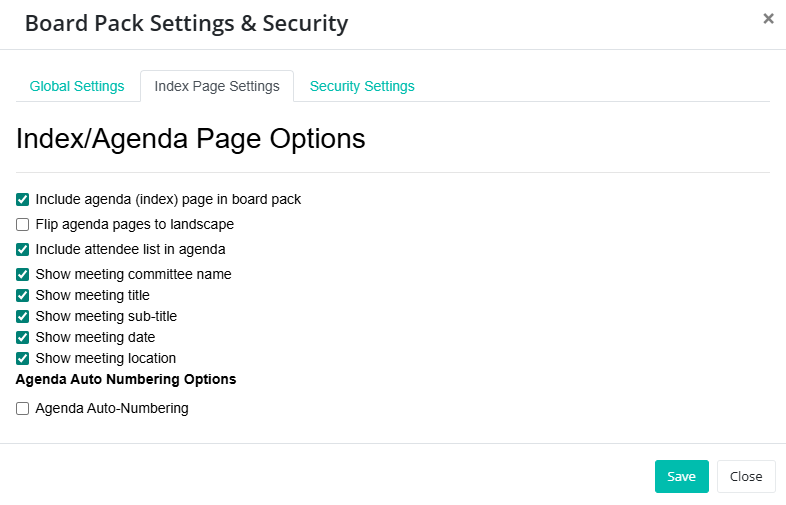
These options control the content of the optional agenda index page.
Include agenda (index) page in board pack
When this option is unchecked, BoardCloud assumes that you will upload your own agenda page as the first page of the agenda.
When checked, BoardCloud will generate its own index page based on your agenda.
The agenda generated by BoardCloud can be customized using various settings, as outlined below.
Flip agenda pages to landscape
This option allows you to change the orientation of your agenda pages from the default portrait format to landscape.
Landscape orientation is wider than it is tall, which can be helpful for fitting wide tables, charts, or detailed content that doesn’t display well in portrait. Using this setting ensures that all content is clearly visible and neatly formatted on the page.
Include attendee list in agenda
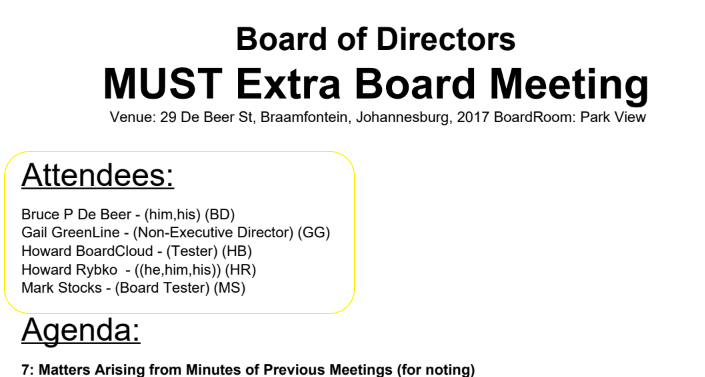
When checked, this option will list meeting attendees at the top of the generated agenda. The index page will look similar to this:
Show meeting committee name
Displays the name of the committee holding the meeting. Useful for boards or organizations with multiple committees, so members immediately know which group the meeting relates to.
Show meeting title
Displays the main title of the meeting. Helps members understand the main focus of the meeting at a glance.
Show meeting sub-title
Displays any sub-title associated with the meeting. Provides extra context or specifics under the main title.
Show meeting date
Displays the scheduled date of the meeting. Ensures members can quickly confirm when the meeting is scheduled, avoiding confusion and missed meetings.
Show meeting location
Displays the location where the meeting will take place. Helps members know where to attend, whether it’s a physical room or a virtual link for an online meeting.
Agenda Auto Numbering
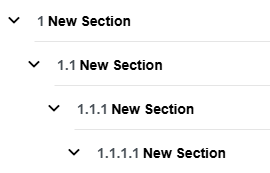
This option automatically numbers agenda items, starting at 1, and keeps the numbering up to date as you work. When enabled, agenda items will be automatically renumbered if you click and drag agenda sections into a different order.
For nested agenda sections, the auto-numbering continues hierarchically. Parent agenda items will be numbered sequentially (for example, 1, 2, 3), while sub-items will follow the parent number (for example, 1.1, 1.2, 2.1, and so on).
This ensures your agenda remains clearly structured and correctly numbered at all times, even as changes are made.