
Creating And Managing A Vote
Creating and Managing Votes
Creating a Vote
- Click the Add Vote button (below the Resources tab) or
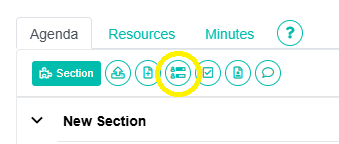
Click the three-dot (kebab) icon on an agenda section and select Add Vote, or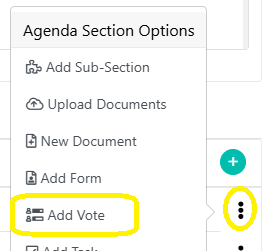
Click the green plus (+) icon on the right-hand side of the agenda, then choose Add Vote from the dropdown menu.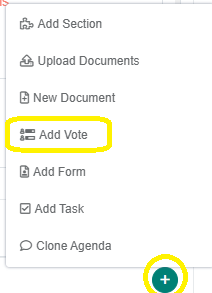
- Add a vote title and an optional full-length description.
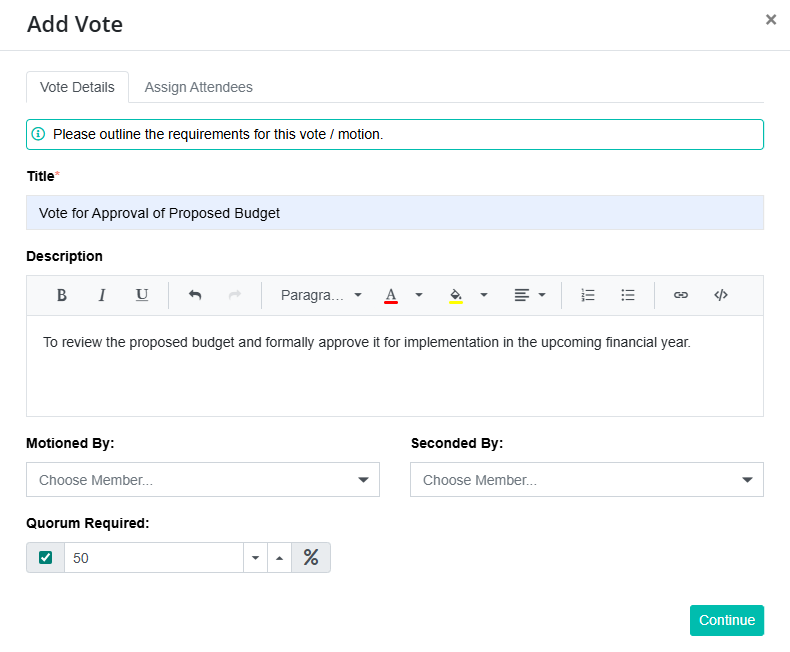
- Optionally set the motioner and seconder.

The motioner is the member who is putting the vote forward. This is important because the meeting administrator usually sets up the vote, but the motioner identifies which member formally requests the motion.
The seconder is the member who supports the motion before it is presented to the board. Including this information provides clarity on who initiated and backed the vote, which is helpful for record-keeping and transparency.
Administrators can also record votes on behalf of members when required (for example, when a member has provided their instruction in advance or is unable to submit their vote themselves). This ensures the vote accurately reflects the member’s intention while maintaining a complete audit trail. - Click Continue to assign participants and then Finish to add the vote to the agenda.
Managing Voting Access
Votes are closed by default. The meeting administrator controls availability using Open/Close Vote.
Closed Vote: Members cannot submit responses.

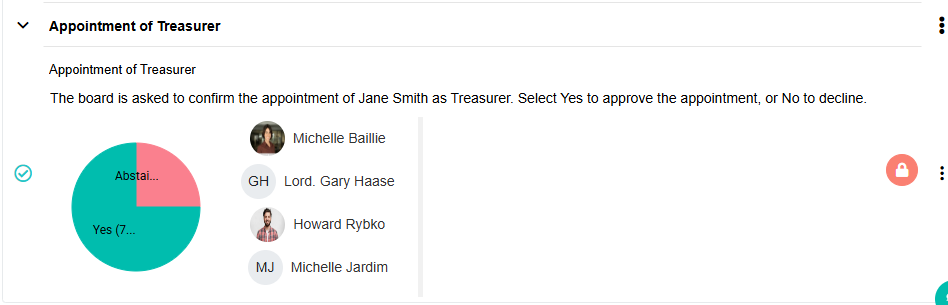
Open Vote: Members can cast votes.

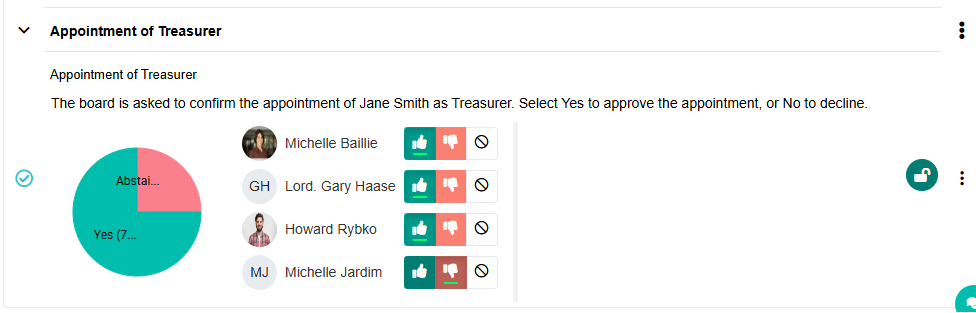
Manage eligible voters via Manage Users. You can add or remove participants for each specific vote, ideal for committees or restricted voting.
Members can vote any time once the vote is open, even before the meeting starts.