
How to Build a Declaration of Interests Form
How to Build a Declaration of Interests Form
This tutorial will guide you step by step through creating a Declaration of Interests form.
This is a commonly requested form used to ensure transparency and manage potential conflicts of interest.
To begin, follow the steps to create a new form here.
Step 1: Start a New Form
Once the form creation area opens, it will be empty.
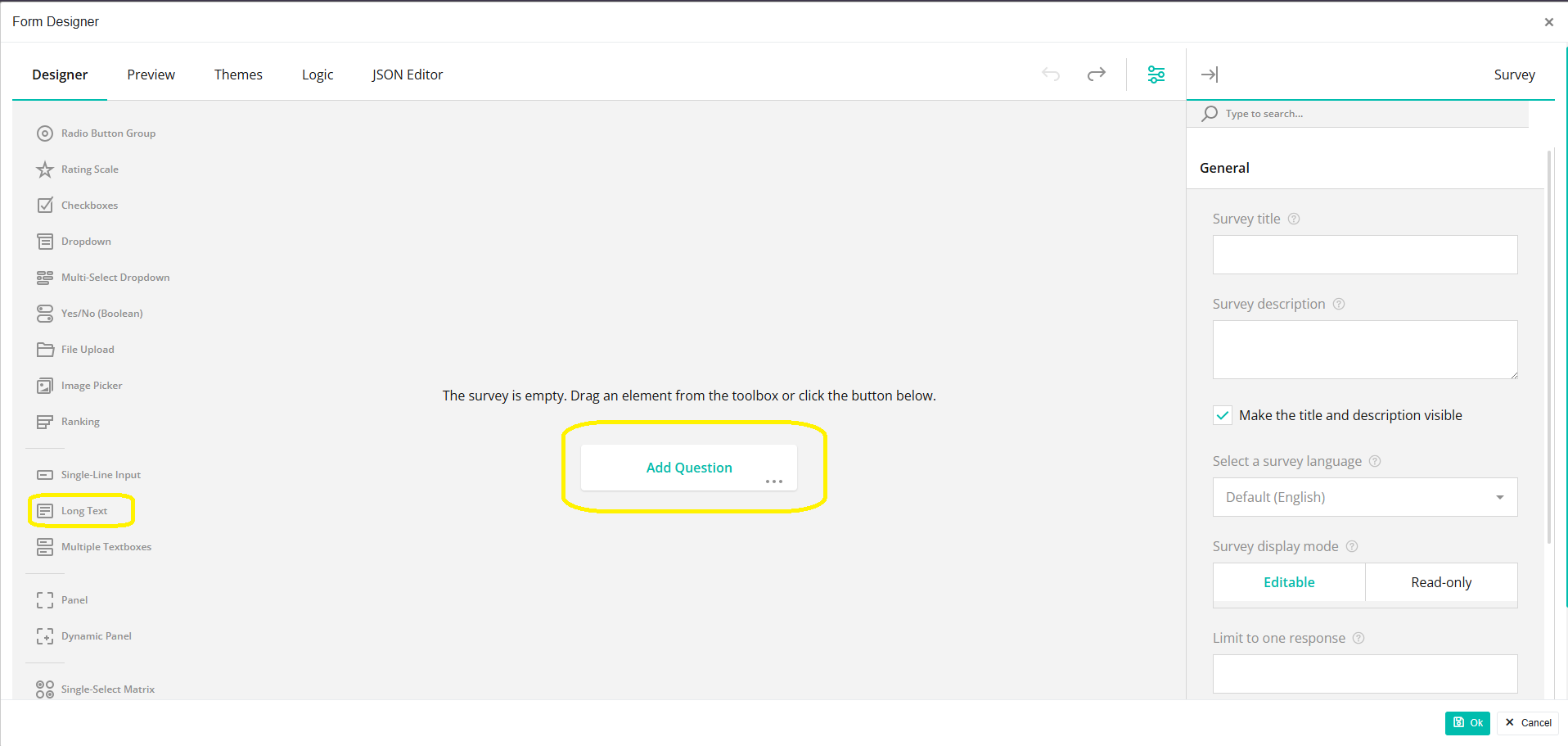
- Click the Add Question button in the middle of the form, or
- Use the left-hand menu and select Multiple Textboxes
- If you click in the middle of the form:
The default question type will be Single-line Input - Change the question type to Multiple Textboxes
Step 2: Add the Form Title and Description
Adding your first question will automatically display the Survey Title, Description, and Image area at the top of the form.
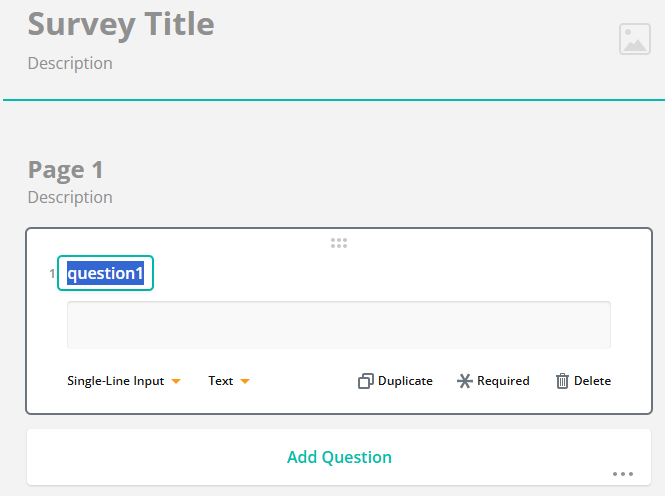
- Click on Survey Title and change it to:
Declaration of Interests - Click on Description and enter the following text:
This form is to ensure transparency and manage any potential conflicts of interest. All members, employees, contractors, and applicants are required to declare any personal, financial, or other interests that may give rise to a conflict in relation to their role or responsibilities. - (Optional) Click the image selector to upload your organization's logo. This will open a folder on your computer where you can choose an image.

Step 3: Add the Personal Details Section
- Click on Question 1 and change the question text to:
Personal Details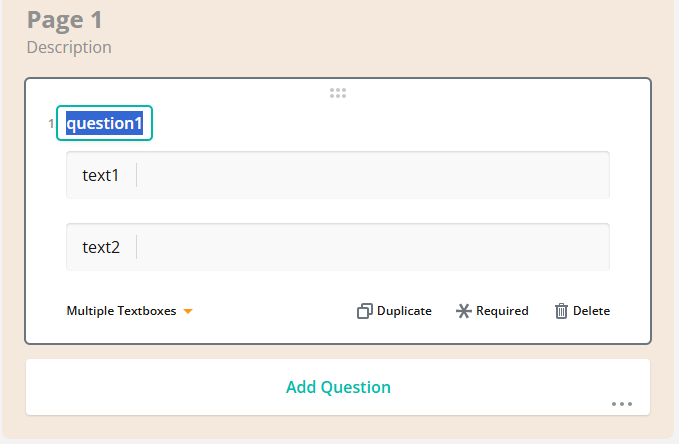
- In the first text box, replace Text 1 with:
Full Name: - In the second text box, replace Text 2 with:
Role/Position: - To add a third text box:
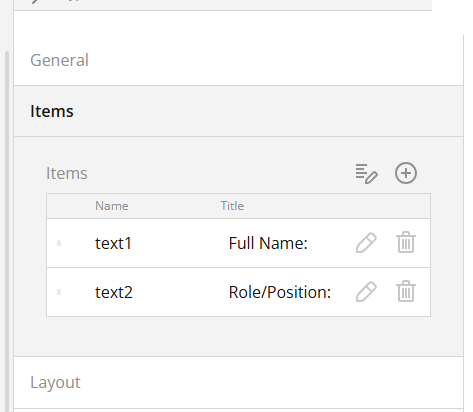
- Scroll down on the right-hand panel to Items
- Click the plus (+) icon

- In Text 3, enter:
Department/Committee (if applicable):
You can save the form at any time by clicking the green OK button in the bottom-right corner.
Step 4: Add the Declaration Question (Yes / No)
- Click Add Question
- Select Yes/No (Boolean)
- Change the question text to:
Do you have any personal, financial, or other interests that may give rise to a conflict of interest?
- The member will be able to select Yes or No.
Step 5: Add a Conditional Details Section
- Click Add Question
- Select Long Text
- Enter the following question text:
Please provide details of the interest(s), including the nature of the interest and any potential conflict. - Make this question conditional:
- Ensure this question is selected
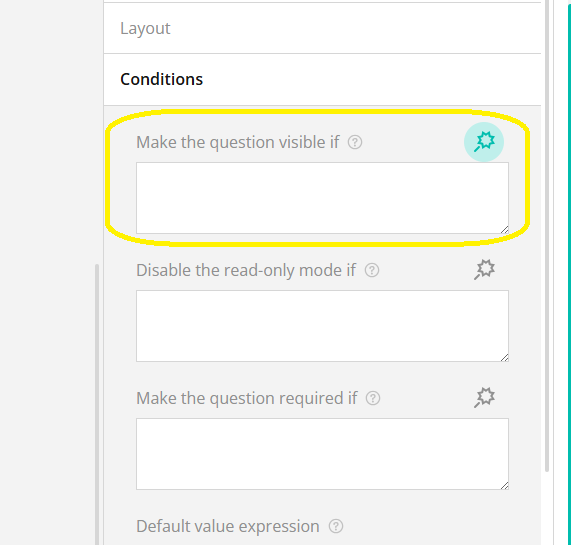
- Click Conditions on the right-hand side
- Under “Make the question visible if”, click the magic wand icon
- In the pop-up:
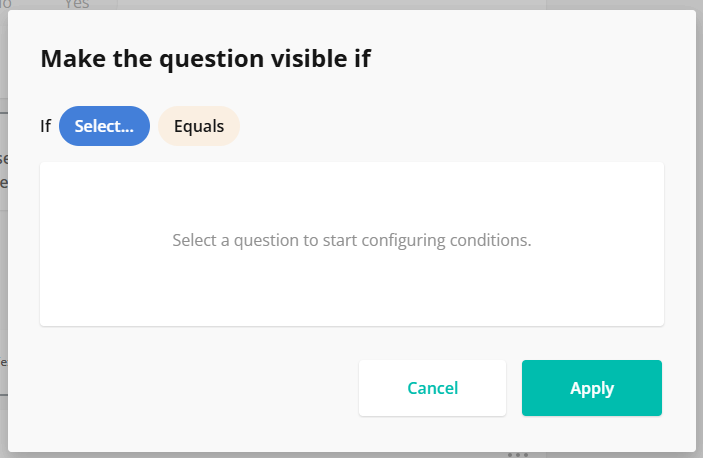
- Click Select and choose Question 2 (the Yes/No question)
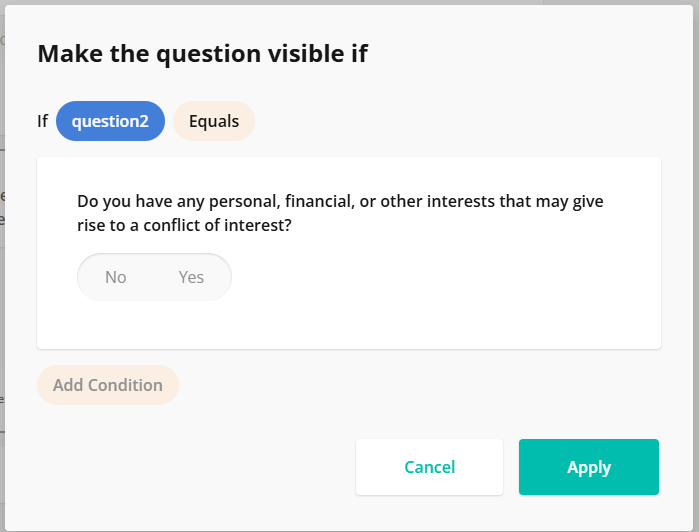
- Choose Does not equal
- Select No
- Click Apply
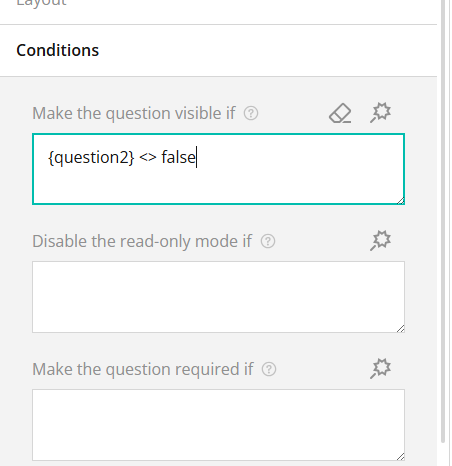
- This logic ensures the details section is only displayed if “Yes” is selected.
Step 6: Add the Declaration Statement
- Click Add Question
- Select Long Text
- Enter the following text:
I, the undersigned, declare that the information on this form is true to the best of my knowledge.
Full Names:
Step 7: Add a Signature Field
- Click Add Question
- Select Signature
- Change the question text to:
Signature:
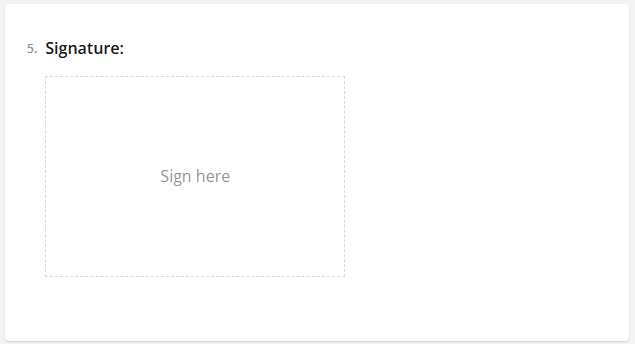
The member will be able to sign the form digitally.
Step 8: Save and Preview the Form
- Click Save (OK) to store your changes
- Click Preview to see how the form will appear to members
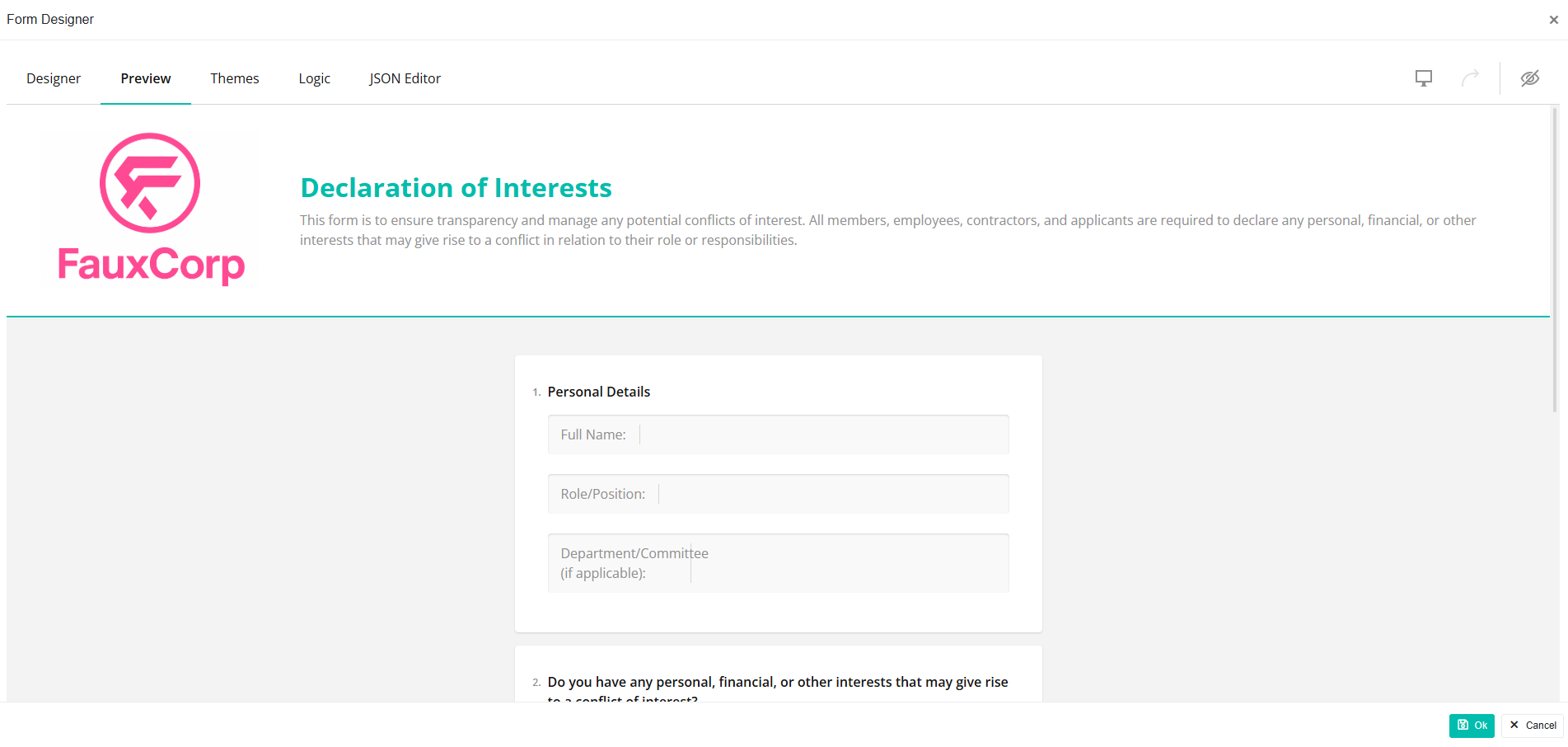
Your Declaration of Interests form is now complete and ready for use.