
Log In Page and Logging Out
Log In Page and Logging Out
Each organization has a unique BoardCloud portal URL, which is how members access their portal. There is no universal login page. To log in, use the link provided for your organization, for example:
yourorganization.boardcloud.app
This ensures your portal is secure and private.
Log In Page
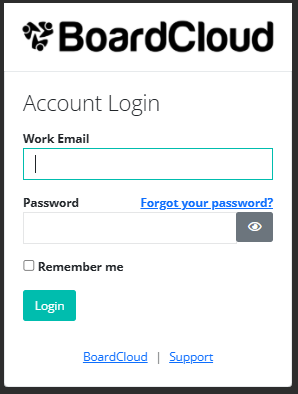
When accessing your BoardCloud portal, you will see the following:
- The URL of your company portal displayed at the top of the page.
- Your company logo.
- An email address field. Make sure you enter the email address used to set up your account (this will most likely be your company email address).
- A password field. Click the eye icon to view what you are typing.
You can tick the “Remember me” checkbox to save your login details on the device you are using. However, we strongly recommend not selecting this option if your organization deals with sensitive information or if you are using a shared device.
Additional links on the login page:
On the left-hand side, there is a link to the BoardCloud website (boardcloud.org).
On the right-hand side, the Support link will take you to a contact form where you can request assistance. Alternatively, you can email us at [email protected]
How to Log Out
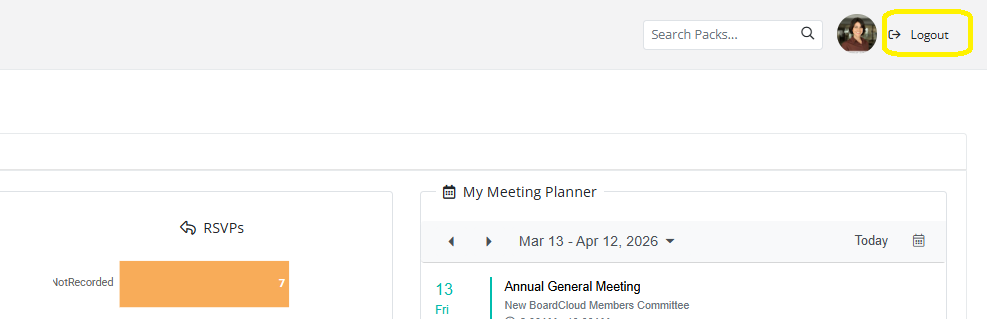
On any page within the portal (Meetings, Committees, Member Directory, etc.), click the Log Out option located in the top-right corner of the screen.
Forgot Password
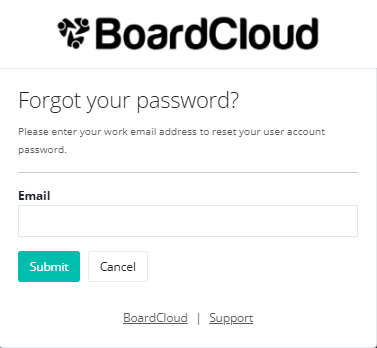
If you have forgotten your password, click the “Forgot Password” link. A password reset email will be sent to your registered email address. Alternatively, you can ask your portal administrator or BoardCloud Support to send you a reset link.
Bookmark Your Portal
To make it easier to access your board portal in the future, you can bookmark the page in your web browser.
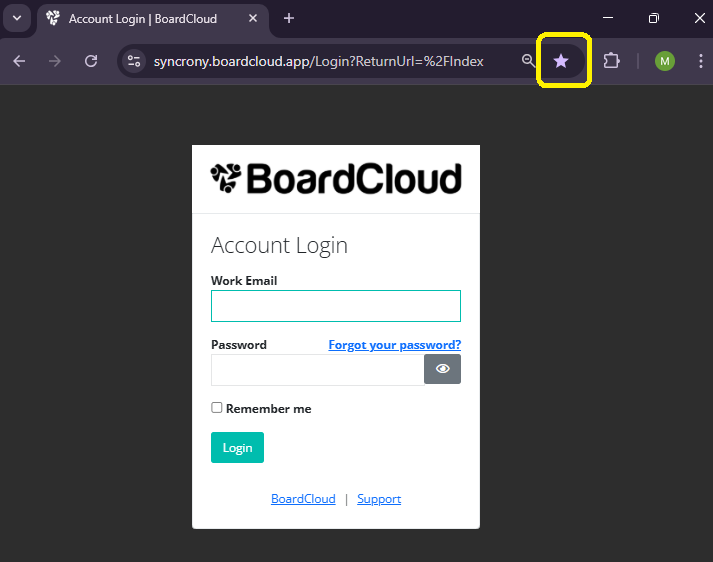
- Open the board portal in your browser.
- Click the star icon in the address bar at the top of the browser.
- Choose where you would like to save the bookmark (for example, your bookmarks bar).
- Click Done.
You will then be able to access the portal quickly by clicking the bookmark whenever you need to log in.