
Accessing Your BoardCloud Portal
Receiving Your Welcome Email
When your organization adds you to BoardCloud, you will receive a welcome email inviting you to set up your account. This email will be sent to the email address your organization has registered.
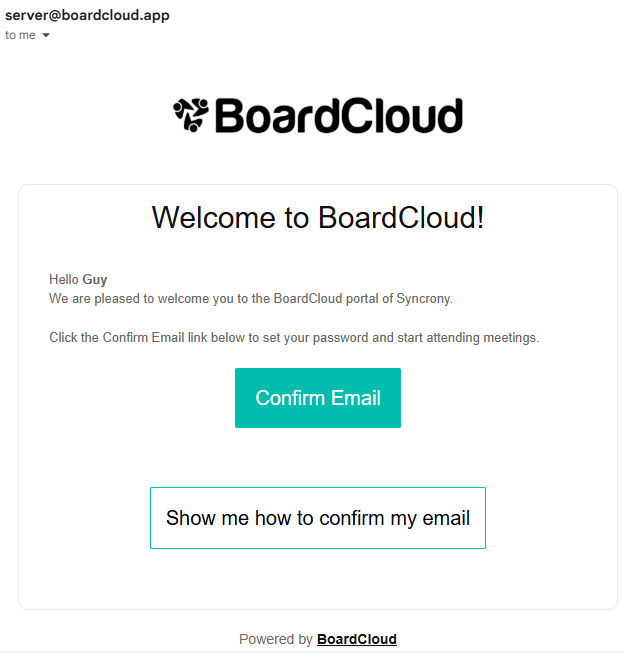
The welcome email contains:
Confirm Email: A link to set up your account. Click this link to create your password and complete your registration.
Show me how to confirm my email: This will open a Youtube video that shows you how to confirm you email.
Steps to complete your setup:
- Open the welcome email and click the “Confirm Email” link.
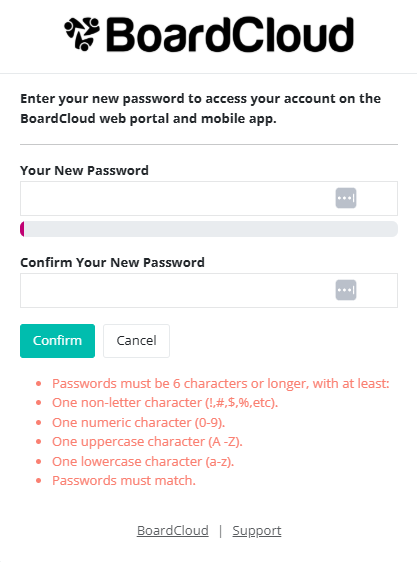
- Choose a secure password and confirm it.
- Log in to your BoardCloud portal using your email and new password.
Important:
Please make sure:
- You are entering your email address correctly. Double-check there are no spaces and it matches the one your organization used to sign you up.
- You have chosen a secure password that meets the criteria provided.
- You have entered your password correctly both times when confirming it.
If you do not receive a welcome email within a few minutes, check your spam or junk folder. You can also contact your portal administrator or email [email protected] for assistance.