
Adding A Form To Your Agenda (New)
Adding a Form to Your Agenda
Adding A Form Via The Agenda
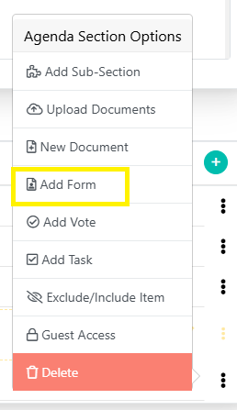
The Add Form button, outlined in yellow in the image, allows you to add forms to the agenda. This functionality is available by clicking the three dots next to any agenda item.
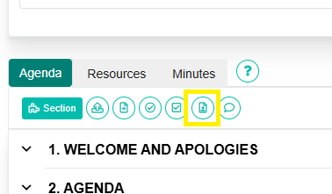
The Add Form Button, outlined in yellow below, can also be clicked to add a form to your Agenda.
The add form dialog will pop up and should look similar to this:
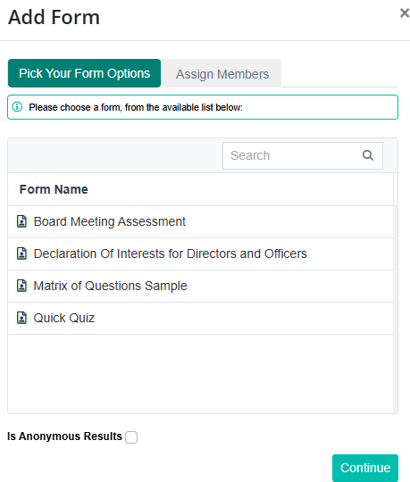
Click on "Pick Your Form Options" if you want to add an already existing form. The available forms displayed are sourced from the forms created in the Forms Builder.
At the bottom of this dialog is an option to collect form submissions with anonymized results. Check this option should you require your form to carry this option. Once clicked, you will be able to select the form you want to add to the meeting.
By clicking the Continue button, Members can be selected who need to fill in the form.
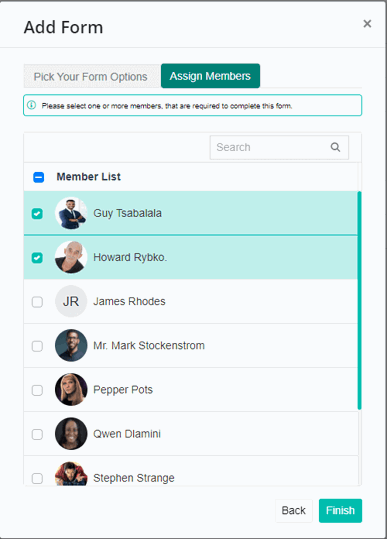
After clicking the Finish button, the form will be added to the meeting agenda.

Form Options
Once a form has been embedded into an agenda, the following options are available for working on the form:
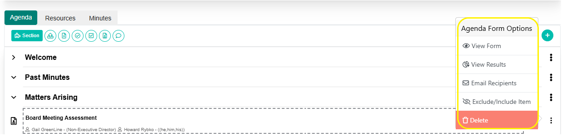
Preview Form
When clicked, this option will open the form in a full-screen pop up window. The window can be closed by clicking on the 'X' icon in the very top right of the window.
The form is not usable in this view. It is designed to allow for a read-only view of the form for checking purposes.
View Tabular Results
You can view form responses in a convenient table format, showing each member’s name alongside their submitted answers. This makes it easy to review, compare, and analyse responses at a glance.
Please note: if the form was set to collect anonymous responses, member names will not be displayed.
View Chart Results
This option will open up a review window, which will show the results of the form completion. This works well for multiple choice options, but text based options are more difficult to reduce to a single statistical result.
Email Form Notice
A form that has been added to a meeting agenda can be emailed to form participants. This will serve as a reminder to members to complete the form.
An example of the form notification email can be seen here.
The email carries a link to the form for completion and submission.
Now that you've added a new form, you can create a beautiful, customized form.
Adding A Form To Your Agenda Via Form Register
To add a form to a meeting agenda, follow these steps:
- Navigate to the Form Register using the menu on the left-hand side of your screen.
- Create a New Form entry by clicking + New Form in the top-left corner.
This will open a pop-up titled “Create a New Form.” - Complete the Required Fields
Fill in all required fields (marked with a *). - Click Create
Form Definition
Select the form you want to use. This list includes all forms that have already been created within your organization.
Related To
Choose what the form should be linked to:
Meeting: Select an upcoming meeting. The form will automatically be added to that meeting’s agenda.
Members
Select the members who need to complete the form.
This list includes all members on your portal, including those who have not yet signed up.
Anonymous Results
Enable this option if you want responses to be anonymous.
When enabled, responses cannot be linked back to individual members. By default, this setting is turned off.
Important Note on Member Access
Members who have not yet activated their accounts will still receive the form but must sign in before completing it.