Add Members to BoardCloud
Adding BoardCloud Members
Before members can be added to committees, they must first be created in BoardCloud. You can create new members from the Admin – Manage Members section.
You must have Admin rights to create new members.
Adding A Member
1. Navigate to Admin – Manage Members.
2. Click the Create New Member button in the top-left corner of the Manage Members window. The screen should look similar to the image below.
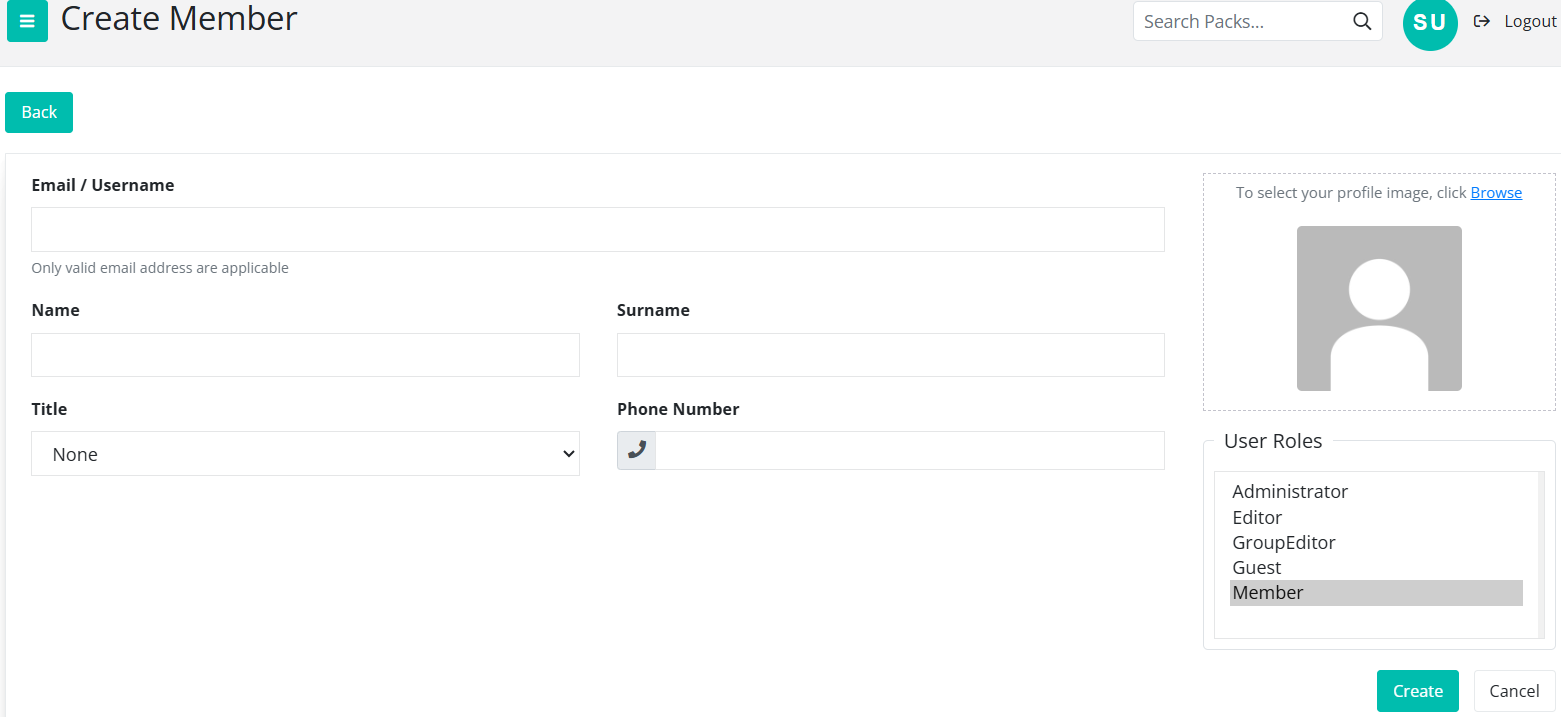
3. Enter the member’s Name, Surname, and Email address. The remaining fields can be left blank if they are not required.
4. Under User Roles, make sure you select Member.
5. Click Create in the bottom-right corner of the screen.
Once you click Create, BoardCloud will send a Welcome email to the new member.
Member Welcome Email
The new member will receive an email inviting them to confirm their account. The email should look similar to the example below.
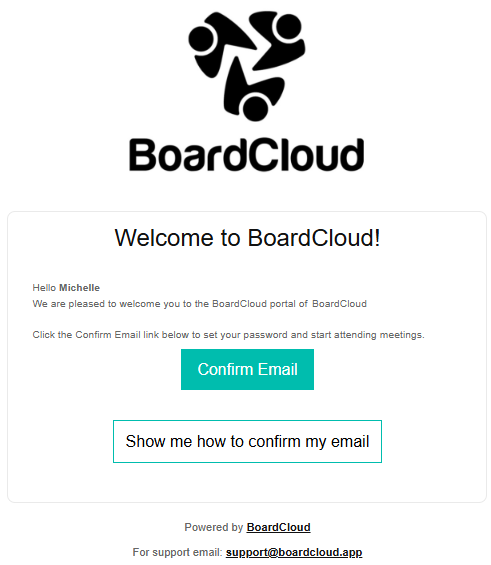
Here is another example of a Welcome Mail.
BoardCloud-generated emails display your company logo at the top.
See here if your Welcome Emails are not arriving in your member's inboxes.
Confirming and Setting a Password
Before the new member can access BoardCloud, they must confirm their email address and set a password.
The member needs to follow these steps:
- Open the confirmation email from BoardCloud.
- Click the Confirm Email button.
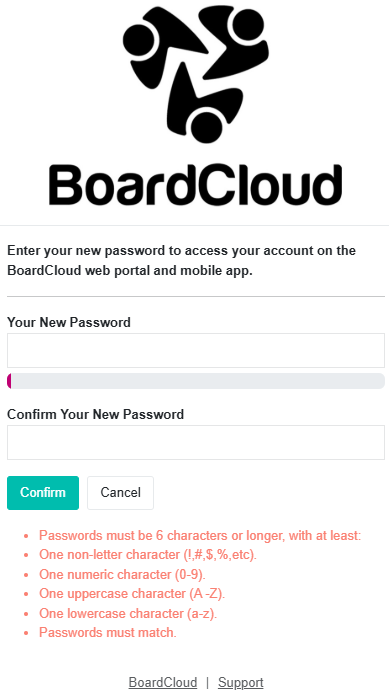
- Follow the instructions to set a new password.
- Enter the new password in both the New Password and Confirm Password fields.
- Complete the process to confirm the password.
Once the password has been set successfully, the member will be logged in to BoardCloud and taken to the Meetings Dashboard.