
Create a New Resolution
The Resolutions Page is a central hub for all your resolutions. Administrators can create new resolutions, track the status of documents as they go through the signing process, and view the signed documents and audit trail of the signing. 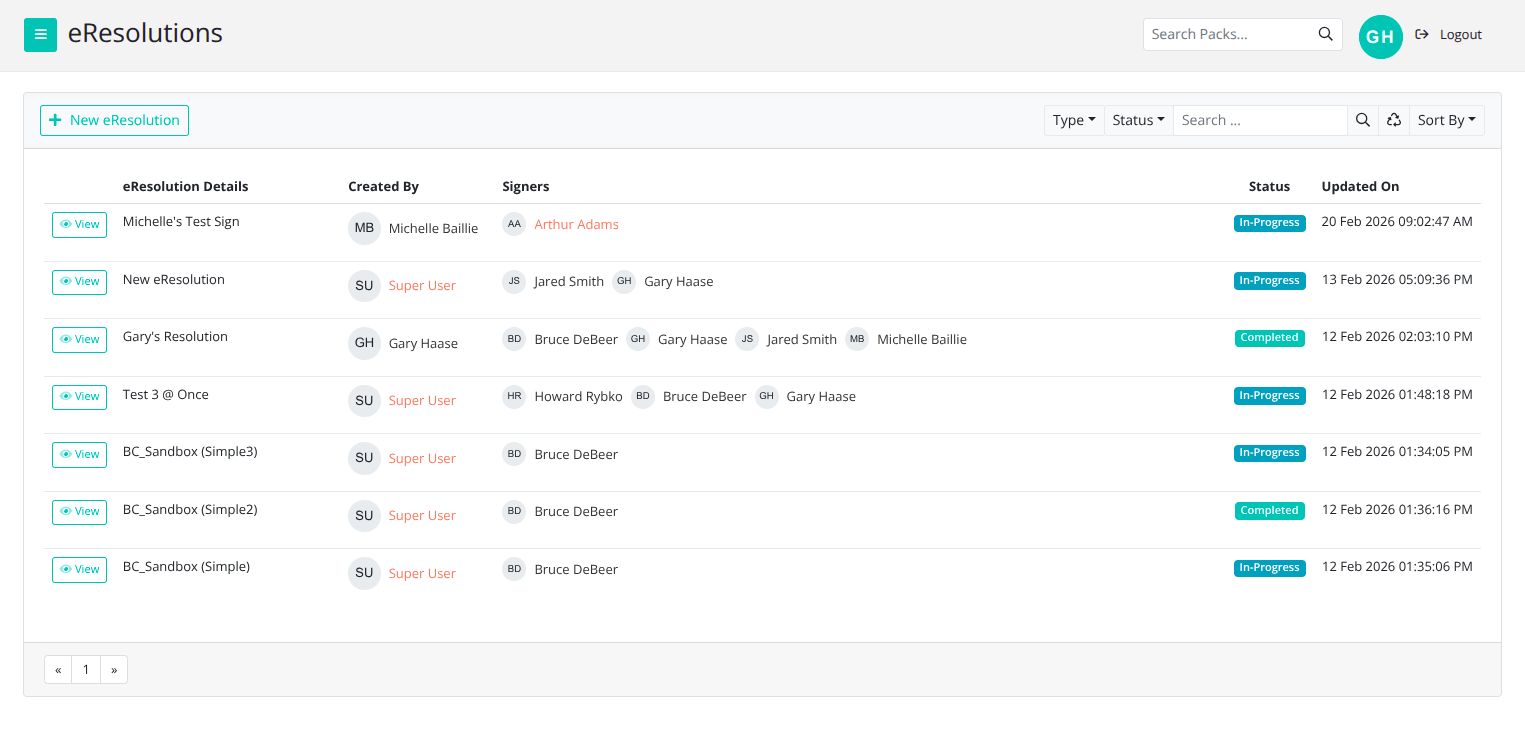
Click + New Resolution and our intuitive interface will guide you through the process.
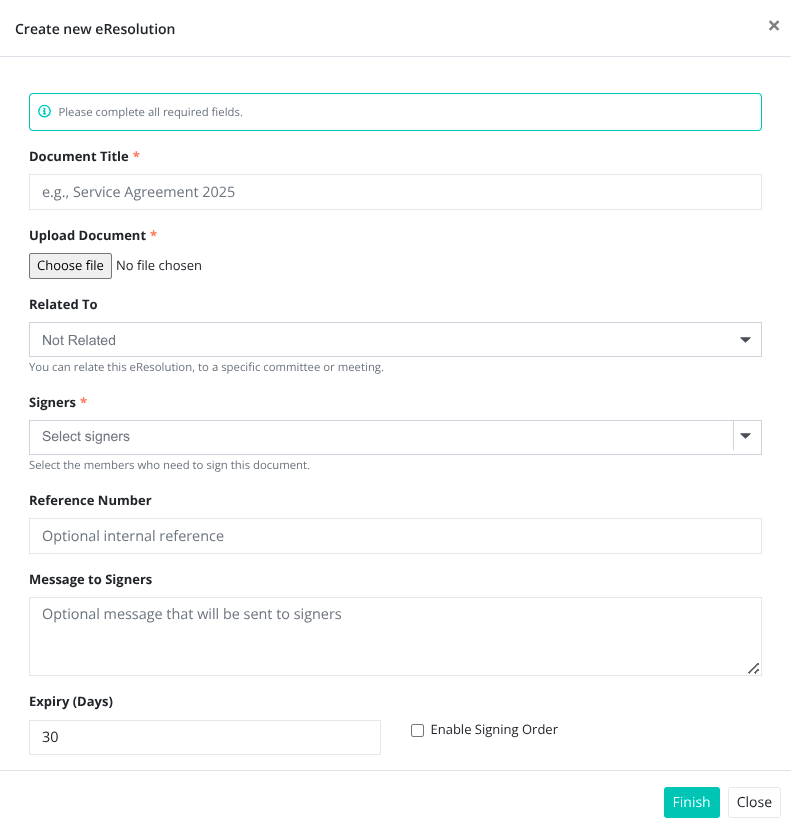
Step 1 - Uploading a Document for Signature
The first step is to Choose your Document Title and upload your document for signature. Word documents and PDFs are supported.
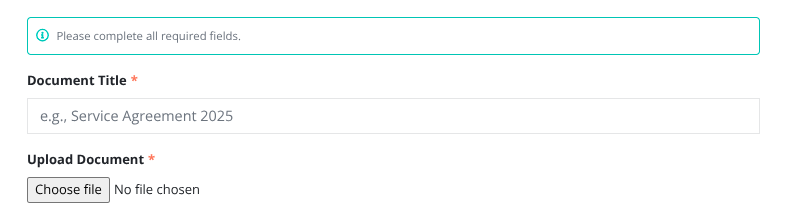
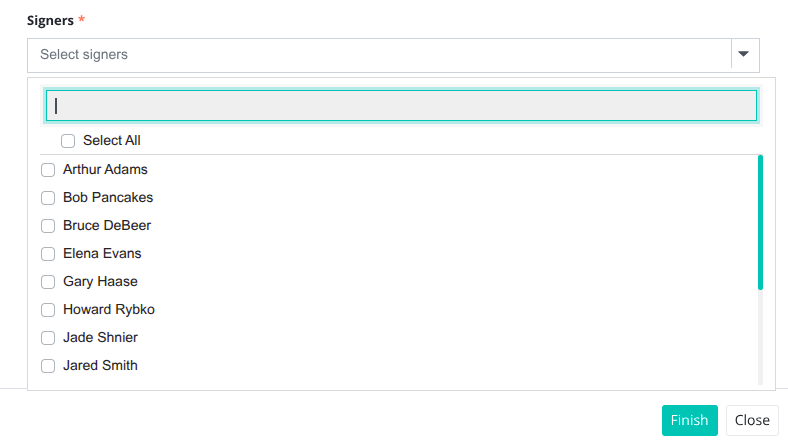
Step 2 - Selecting the signatories
You can select the relevant committee or meeting group to sign the document from a drop down menu.
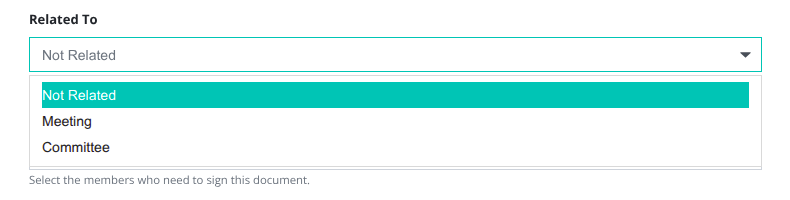
You can also select individual signatories from a second drop down menu.
Step 3 - Selecting the Parameters
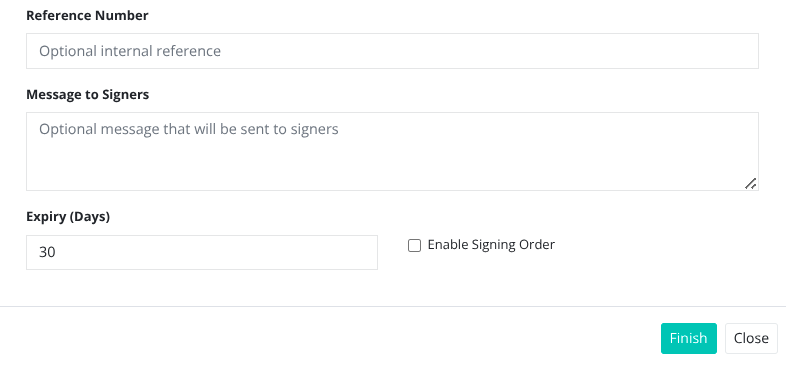
The final step is to select parameters for your new resolution. Here you may add your reference number, include a message for the signatories, set an expiration date for signing ( the default is 30 days), and enable a signing order*
 Click Finish and the Resolution is created. Your resolution will be sent out for signature and will now appear in the Resolutions Page. From the Resolutions Page you can view the entire signing process.
*If signing order is enabled, the e-mail will only be sent to the first signatory. Only once the signature is completed will the e-mail signature request be sent to the second signatory, and so on.