
My Profile
My Profile
In BoardCloud, each member has a profile page. This page helps you and other members quickly see who’s who, especially during virtual meetings.
You can view your own profile and see your details.
You can edit your own profile to add a photo or update information.
Profile Access
Your profile picture will appear in the top-right corner of the screen. If you have not uploaded a photo, your initials will be displayed instead.
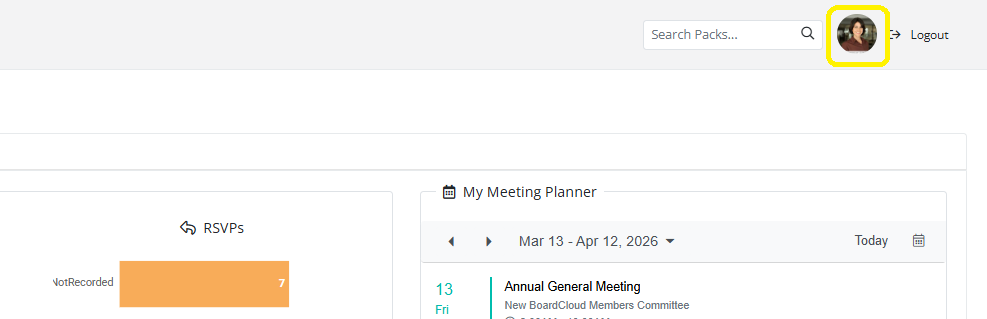
Clicking on your profile icon will take you to your Profile Page, where you can update your details.
Profile Options
When you open your profile page, you will see several sections that allow you to view your committee memberships, manage your account, and control your profile visibility.
My Committees
The My Committees section shows a list of all the committees that you are currently a member of.
This helps you quickly confirm which committees you belong to within the portal. Clicking on the committee name will take you to that committee in the Committees dashboard
My Admin
The My Admin section contains settings related to your account.
Change Password
Select Change Password if you would like to update your BoardCloud login password.
My Files
BoardCloud provides a secure file storage area called My Files, which is linked to your personal profile.
This allows you to upload and store files that relate specifically to you as a member.
For example, this may include:
- Identification documents
- Travel documents
- Signed forms
- Other files that you or the system administrators may need access to
Files stored in My Files are private and can only be viewed by:
- You (the member)
- System administrators
You can find the My Files section on your profile page, below your profile picture.
Working with Files
The My Files area works similarly to most file explorers.
You can:
- Create folders to organize your files
- Upload most common file types
- Structure folders in a tree layout with subfolders
When selecting a file, you may be able to:
- Move the file
- Copy the file
- Download the file
- Rename the file
- Delete the file
Two Factor Enabled
For additional security, you can enable Two-Factor Authentication (2FA) for your account.
How to Enable 2FA
- Go to your profile page by clicking your avatar or profile image in the top-right corner of BoardCloud.
- Locate the Two Factor Authentication setting.
- Tick the checkbox to enable it.
Once enabled, the next time you log in:
- Enter your username and password as usual.
- BoardCloud will send a verification code to your email address.
- Retrieve the code from the email titled:
BoardCloud – Two Factor Authentication - Enter the code into the Two-Factor Authentication prompt to complete your login.
If you did not request a code, you can safely ignore the email.
Show My Profile in Directory
This setting determines whether your name appears in the Members Directory.
- Enabled: Other members can find you in the directory.
- Disabled: Your name will be hidden from the directory list.
Show My Profile Page
This setting controls whether other members can open and view your full profile page.
- Enabled: Members can click your name and view your profile.
- Disabled: Your profile page will not be accessible to other members.