
The Meeting Pack
The Meeting Pack
The Meeting Pack area provides different ways to open and view your board packet.
- The cover image links to the Board Pack Viewer. When clicked, it will build and open the latest version of the board packet in the Viewer.
- You can also open the board packet by clicking the blue View Meeting Pack link (with the eye icon), or
- by using the View Published Pack link in the Meeting Details section.
All three options allow you to view the board packet, but there are some differences to be aware of. With all three options, you need to have at least one document in your agenda section.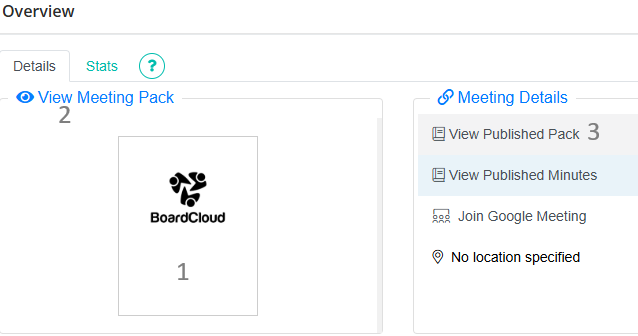
The different ways to view the Meeting Pack
- Meeting Pack cover image
Click on the cover image in the top-left corner of the screen, underneath the Overview – Details – Meeting Pack tabs.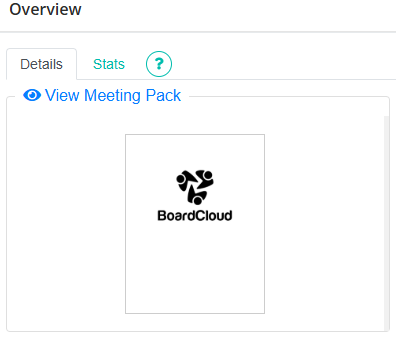
This will build the latest version of the board packet and open it in the Board Pack Viewer.
Each time you click the image, the pack will be rebuilt to include your latest changes.
You can use this option to preview the pack at any time, even if the meeting has not yet been published.
Building the pack does not notify attendees or publish the meeting.
2. Blue View Meeting Pack link
Click the blue View Meeting Pack link, identified by the eye icon.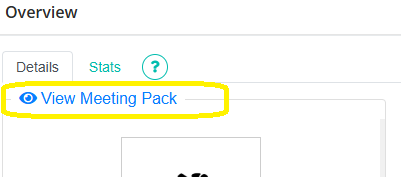
This is an alternative way to open the board packet in the Viewer.
Use this option if you prefer clicking a link rather than the cover image
3. View Published Pack (Meeting Details)
You can also find the View Published Pack link under the Meeting Details section.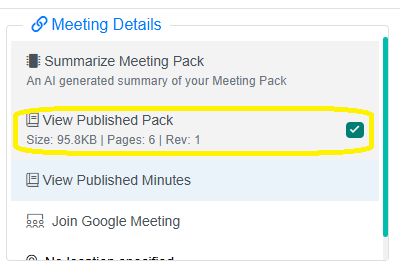
This option allows you to open the published version of the board packet.
Once the meeting has been published, a green tick/check mark will appear next to this option to indicate that the pack has been published.
Making changes to your Meeting Pack
The Board Pack Viewer is for viewing and reviewing your board packet. If you need to make changes, add agenda sections or upload additional documents:
- Close the Board Pack Viewer.
- Return to the meeting setup area.
- Make the necessary changes to your agenda or documents.
- Open the Meeting Pack again to review your changes.
You can repeat this process as many times as needed before publishing the meeting.
Important: Opening the pack using the cover image rebuilds it, so any changes you've made to the agenda or documents will be reflected in the latest version.