
Sending Forms
Send a Form
Once your form has been created, it can be distributed to board members, committees, or selected users for completion.
How To Add A Form To Your Agenda
Forms can be added directly into the the agenda of the associated meeting. Learn how to do that here.
Sending a Form to Members
Forms in BoardCloud are sent to members using the Email Recipients option. This is the only way to distribute a form directly to users.
Email Recipients (Sending a Form)
To send a form:
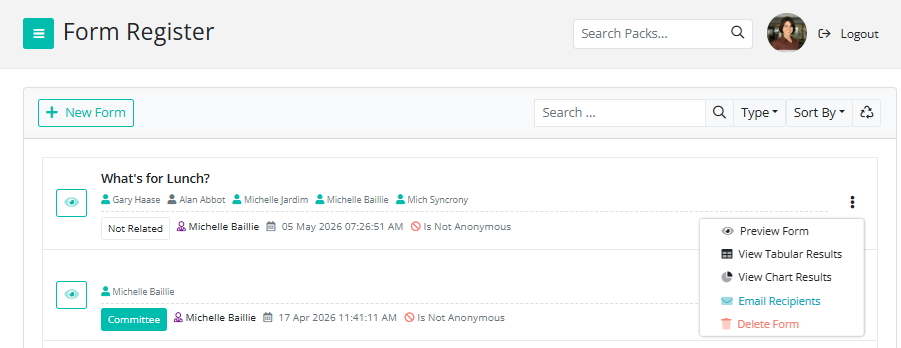
- Go to the Forms Register or
Locate the form within a meeting agenda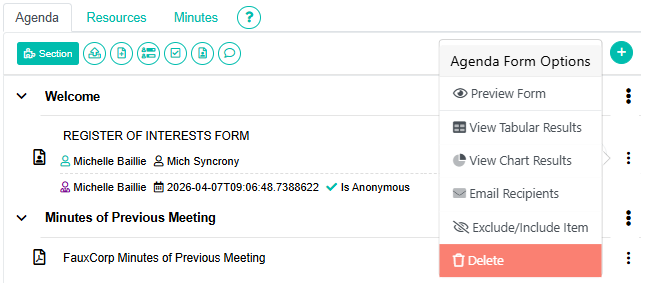
- Click the three dots (⋯) menu next to the form
- Select Email Recipients
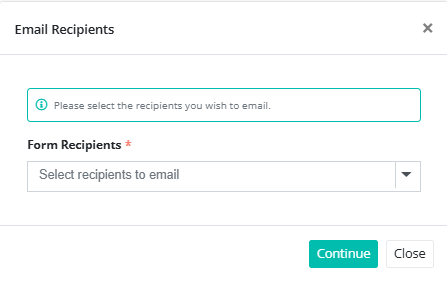
- Choose the members you want to send the form to
- Send the email
Each recipient will receive an email containing a “View Form” button. When clicked, this opens the form in their BoardCloud portal where they can complete and submit it.
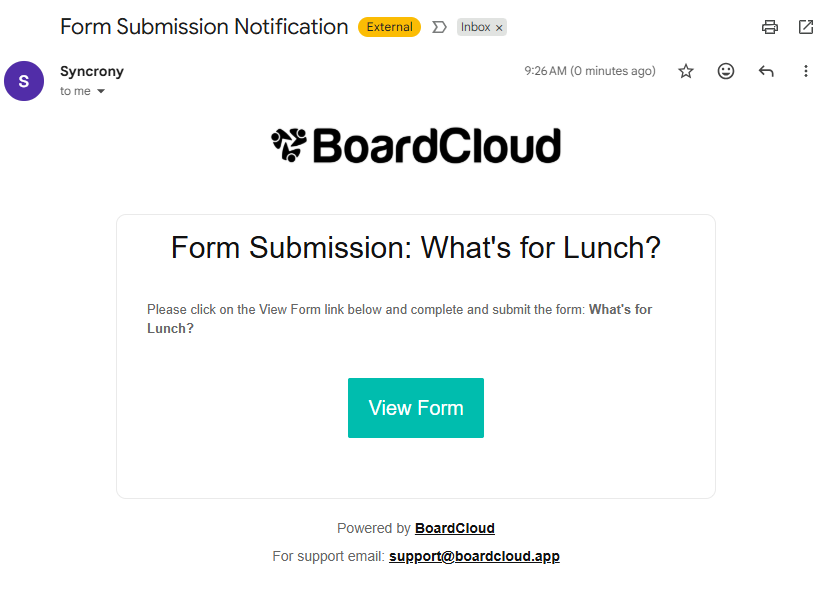
How Members Access the Form
Once a form has been sent, members can access it in multiple ways, depending on how it has been made available in the system:
Via Email Link
Members receive an email with a direct link to the form
They can open and complete the form immediately in BoardCloud
Via Meeting Agenda
If the form is linked to a meeting, it appears as an agenda item
Members can access it while reviewing the meeting pack
Via Forms Register
Members can view all assigned forms in the Forms Register
They can track status (completed or outstanding)
Via Committee Forms
If linked to a committee, the form appears under that committee
Only committee members will have access
Choosing recipients
When sending a form, you can:
- Send to all members of a meeting or committee
- Select specific users
Ensure the correct recipients are selected before sending.
Notifications
When a form is sent:
- Users receive an email notification prompting them to complete the form (see above)
- The form becomes accessible within their BoardCloud portal on the Form Register Dashboard
Resending and Reminders
You cannot send reminders to members but, if required, you can resend a form to users who have not yet responded. This helps ensure timely completion, especially for compliance-related forms. The resending of the form is manual and will not be automatic.